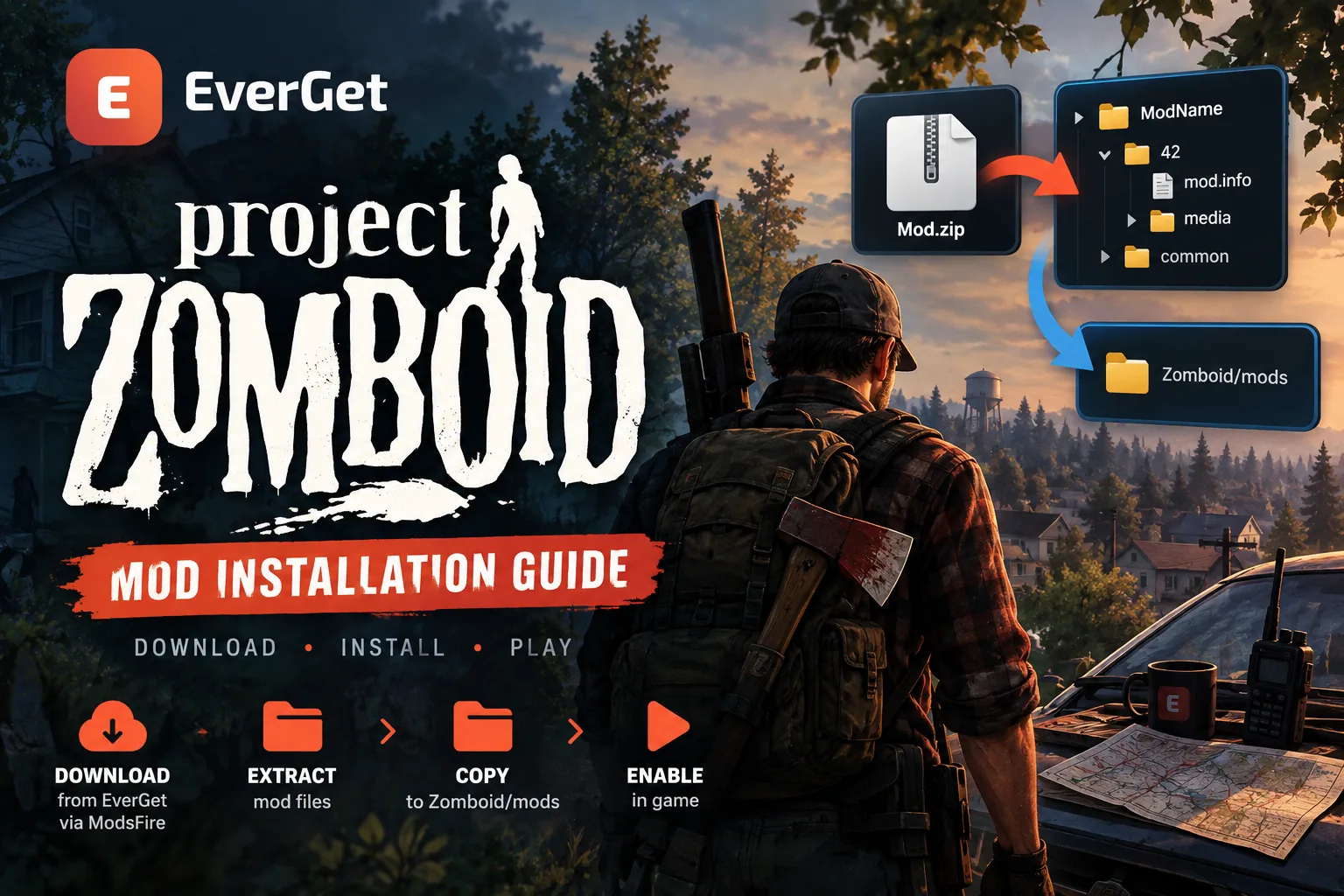

Learn how to install Project Zomboid mods manually using EverGet and ModsFire. This step-by-step guide covers mod installation for Build 41 and Build 42, correct folder locations, Steam Workshop, multiplayer servers, required dependencies, compatibility issues, and solutions to common installation errors.
Contents
- Method 1. Manually Installing Mods from EverGet Using ModsFire
- Build 41 vs Build 42 - Important Differences
- Method 2. Installing Mods Through Steam Workshop
- Method 3. Installing Mods on a Project Zomboid Server
- Common Mod Installation Problems and Solutions
- Should You Back Up Your Saves Before Installing Mods?
- Where to Download Project Zomboid Mods
Mods can completely transform Project Zomboid, introducing new vehicles, weapons, buildings, gameplay mechanics, interface improvements, and entirely different ways to experience survival.
On EverGet, you can discover Project Zomboid modifications, explore their features, check compatibility information, and download archives for manual installation.
Our primary download method uses ModsFire, allowing players to install modifications directly without relying on Steam Workshop.
In this guide, we'll explain how to download and install mods from EverGet, enable them in Project Zomboid Build 41 and Build 42, configure multiplayer servers, and resolve common problems.
Method 1. Manually Installing Mods from EverGet Using ModsFire
Manual installation is the primary method for mods downloaded from EverGet. It works with the Steam version of Project Zomboid as well as installations outside Steam.
You only need to download the archive, extract its contents, place the files in the correct directory, and enable the modification in the game.
Step 1. Download a Mod from EverGet
- Visit EverGet.net and find the Project Zomboid mod you want to install.
- Read its description and check which game version it supports.
- Follow the download link to ModsFire.
- Download the mod archive to your computer.
Depending on the modification, the downloaded file may use one of the following formats:
.zip.rar.7z
Important: Always check whether the mod is designed for Build 41 or Build 42. Modifications created for different versions of Project Zomboid are not necessarily compatible.
Installing an outdated mod on a newer game build may prevent it from loading or cause unexpected errors.
Step 2. Extract the Downloaded Archive
Once the download is complete, locate the archive and extract it using Windows, 7-Zip, WinRAR, or another archive manager.
Inside, you will usually find one or more folders containing the mod files.
The exact structure depends on the supported game version.
Typical Build 41 structure:
ModName/
├── mod.info
└── media/
Typical Build 42 structure:
ModName/
├── common/
└── 42/
    ├── mod.info
    └── media/
Some Build 42 modifications may use version-specific folders such as 42.0 instead of 42.
You may also encounter archives containing a Contents/mods/ directory. In that case, locate the actual mod folder inside mods rather than copying the entire Contents directory.
Do not copy the compressed archive directly into the game's mods folder. Project Zomboid needs the extracted files arranged in the correct directory structure.
Step 3. Find the Project Zomboid Mods Folder
On Windows, the standard directory for manually installed Project Zomboid mods is:
C:\Users\YourUsername\Zomboid\mods\
The easiest way to open it is:
- Press
Win + Ron your keyboard. - Paste the following path:
%USERPROFILE%\Zomboid\mods
- Press
Enter.
If the mods folder does not exist, create it inside your Zomboid directory.
This location is normally used for manually installed mods regardless of whether Project Zomboid was installed through Steam.
Important: Your personal Zomboid folder is different from the game's installation directory.
For manual installations, use the user directory shown above rather than copying files into the main game installation folder.
Step 4. Copy the Mod Files
Move the extracted mod folder into:
%USERPROFILE%\Zomboid\mods\
For example, if you downloaded the Jump Through Windows modification, the resulting directory might look like:
Zomboid/
└── mods/
    └── SprintDiveWindows/
        ├── mod.info
        └── media/
The structure shown above is a Build 41-style example. For Build 42, preserve the version-specific folders supplied by the mod author.
A common installation mistake is creating an unnecessary nested folder.
Incorrect:
Zomboid/mods/ModName/ModName/mod.info
Correct for Build 41:
Zomboid/mods/ModName/mod.info
For Build 42, mod.info may instead be located inside a version-specific directory such as 42.
If the downloaded archive contains multiple separate modifications, place each mod folder directly inside your mods directory.
Step 5. Enable the Mod in Project Zomboid
After copying the files:
- Launch Project Zomboid.
- Open the Mods section from the main menu.
- Locate the modification you installed.
- Enable it and apply the changes.
- Load your save or start a new game.
When using an existing save, you may also need to enable the mod specifically for that playthrough through its save settings.
That's it! If the files are installed correctly and the modification supports your game version, the mod should now be available.
Build 41 vs Build 42 - Important Differences
The Project Zomboid modding system changed with Build 42, so older installation instructions may not always apply to newer modifications.
The main differences are related to how mod files are organized and which game versions they support.
| Feature | Build 41 | Build 42 |
|---|---|---|
| Mod structure | Usually mod.info and media in the mod's root folder |
Supports common and version-specific folders such as 42 |
| Compatibility | Mods created for B41 | Mods updated or created for B42 |
| Manual installation directory | Zomboid/mods |
Zomboid/mods |
| Activation | Through the Mods menu | Through the Mods menu |
A Build 41 mod will not necessarily work in Build 42.
Some modifications require significant updates because of changes to the game's systems, mechanics, and mod structure.
When downloading from EverGet, always check the supported Project Zomboid build in the mod description.
Method 2. Installing Mods Through Steam Workshop
Players who own Project Zomboid on Steam can also install modifications through the official Steam Workshop.
This method is convenient because Steam handles downloads and updates automatically.
Installation instructions:
- Open Steam and navigate to your game library.
- Select Project Zomboid.
- Open the Workshop section.
- Find the modification you want.
- Open its Workshop page and click Subscribe.
- Allow Steam to finish downloading the files.
- Launch Project Zomboid and check the Mods menu.
Enable the modification for your current save if necessary.
Avoid Installing Duplicate Mods
If you have already installed a modification manually from EverGet and then subscribe to the same mod through Steam Workshop, your computer may contain two copies.
Duplicate installations can cause conflicts, confusion about which version is loading, or unexpected behavior.
We recommend using one installation method per modification.
For mods downloaded through EverGet and ModsFire, manual installation is generally the most straightforward approach.
Method 3. Installing Mods on a Project Zomboid Server
If you want to play Project Zomboid with friends, modifications must be configured correctly on the multiplayer server.
The process depends on whether you use manually downloaded files or Steam Workshop.
Installing Downloaded Mods Manually on a Server
If you downloaded the mod archive from EverGet through ModsFire:
- Stop your Project Zomboid server.
- Extract the downloaded mod archive.
- Upload the extracted mod folder to the server's user
Zomboid/modsdirectory. Its exact location depends on the operating system and hosting provider. - Locate the server configuration file, usually
servertest.ini. - Find the
Mods=parameter. - Add the required Mod ID.
- Save the configuration and restart the server.
For Build 41, the configuration typically looks like:
Mods=ModOne;ModTwo
Build 42 server configurations may use backslash-prefixed mod identifiers:
Mods=\ModOne;\ModTwo
The exact identifiers must match the mods being installed.
You can usually find a mod's internal identifier inside its mod.info file:
id=ModName
Alternatively, check the mod description on EverGet.
For manually installed modifications, you do not need to add an entry to WorkshopItems=.
If your server already uses Steam Workshop modifications, leave their existing Workshop entries unchanged.
Important: Players connecting to a server with manually installed mods will also need compatible copies of those modifications.
Installing Steam Workshop Mods on a Server
For mods distributed through Steam Workshop, Project Zomboid servers use two important configuration parameters:
WorkshopItems=- Contains Steam Workshop item IDs.Mods=- Contains the internal Mod IDs recognized by Project Zomboid.
For example, the Jump Through Windows modification uses:
Workshop ID: 3791228868
Mod ID: SprintDiveWindows
A Build 41 server configuration would look like:
WorkshopItems=3791228868
Mods=SprintDiveWindows
For Build 42, where the server expects backslash-prefixed identifiers, the configuration may look like:
WorkshopItems=3791228868
Mods=\SprintDiveWindows
When installing multiple mods, separate their identifiers with semicolons.
Always verify that the selected mods support your server's game version and that all required dependencies are installed.
After editing the configuration, restart the server.
When using Steam Workshop, the server can download the configured Workshop items automatically, and connecting players may be prompted to download the required modifications.
Common Mod Installation Problems and Solutions
Even when installation seems straightforward, certain issues may prevent Project Zomboid mods from functioning correctly.
Below are the most common problems and how to fix them.
Mod Does Not Appear in the Game
If your modification is missing from the Mods menu:
- Make sure you extracted the downloaded archive.
- Check that the mod folder is located inside
Zomboid/mods. - Look for unnecessary nested folders.
- Verify that the mod supports Build 41 or Build 42, depending on your game version.
- Restart Project Zomboid after copying the files.
For Build 42, also check whether the archive contains the appropriate common and version-specific folders.
Tip: Open the mod folder and inspect its contents. An incorrect folder structure is one of the most common reasons manually installed mods fail to appear.
Mod Appears but Does Not Work
Some Project Zomboid modifications depend on additional libraries, frameworks, or other mods.
If the mod appears in the list but its features do not work:
- Read the dependency information in the mod description.
- Install any missing required modifications.
- Make sure all dependencies are enabled.
- Check that every mod supports your game build.
- Follow the developer's load order instructions when provided.
Missing dependencies can prevent a modification from loading correctly, even when its main files are installed.
Mod Does Not Work in an Existing Save
Not all modifications become active immediately after installation.
Some need to be enabled for the specific save you're loading.
Others may require a completely new world, particularly mods that change world generation, map locations, or important game systems.
Before enabling a major modification, check whether the developer supports existing saves.
Game Crashes After Installing Mods
Crashes, errors, and unexpected behavior can result from incompatible modifications or outdated files.
To identify the problem:
- Disable recently installed mods.
- Launch Project Zomboid again.
- Check whether the problem disappears.
- Re-enable modifications gradually in small groups.
- Identify which mod or combination causes the issue.
If you use a large mod collection, keeping a backup of your mod list can make troubleshooting easier.
Mod Does Not Update Automatically
Mods installed manually through EverGet and ModsFire do not receive automatic Steam Workshop updates.
To update a manually installed mod:
- Download the latest available archive from EverGet.
- Close Project Zomboid.
- Open your
Zomboid/modsdirectory. - Remove the old folder belonging to that specific mod.
- Extract the updated version into the same location.
- Launch the game and verify that the mod works correctly.
Avoid deleting unrelated mod folders, save files, or other user data.
Should You Back Up Your Saves Before Installing Mods?
Yes. Creating a backup is strongly recommended, especially before installing major gameplay modifications.
Some mods add new items, vehicles, buildings, map locations, or mechanics that become part of your saved world.
Removing these modifications later may cause missing content or other issues.
On Windows, Project Zomboid saves are normally stored in:
%USERPROFILE%\Zomboid\Saves\
To create a backup:
- Open the
Savesdirectory. - Find the folder containing your world.
- Copy it to another location on your computer.
- Keep the backup until you're confident your mod setup works correctly.
If an installation causes serious problems, you can restore the original save from your backup.
Where to Download Project Zomboid Mods
On EverGet.net, you can explore Project Zomboid modifications, read their descriptions, review compatibility information, and download archives for manual installation.
Our goal is to make mod discovery and installation easier by providing clear descriptions of each modification, its features, requirements, and potential compatibility limitations.
Installing Project Zomboid mods from EverGet is simple:
- Find the modification you want on EverGet.
- Download its archive using ModsFire.
- Extract the files into your
Zomboid/modsfolder. - Enable the mod in Project Zomboid.
- Launch your game and enjoy your customized survival experience!
Whether you're expanding your vehicle collection, improving gameplay mechanics, or building a heavily modded survival world, EverGet provides a convenient starting point for discovering and installing Project Zomboid mods.
Comments 1
Босс сказал нанести урон контроллеру, авторство Razilator (нейросеть)
Log in or sign up to leave a comment.