ZombieBuddy Java Framework
 Владислав Франческо
Mod author: Zed · mod page
ZombieBuddy is a helper library by Zed for Project Zomboid. Mods with additional Java components need it to work. It lets those mods use features that go beyond regular game scripts.
Contents
ZombieBuddy is a helper library by Zed for Project Zomboid. Mods with additional Java components need it to work. It lets those mods use features that go beyond regular game scripts.
The library hooks in when the game launches, so installation means subscribing on the Steam Workshop and setting up the loader once. After that, ZombieBuddy can serve several compatible mods at once, so you don't need to repeat the setup for each of them.
One of the projects that uses the library is Project Viewpoint, which adds a 3D camera and extra graphics features to Project Zomboid.
Installing ZombieBuddy on Windows
There are two ways to install it: with the automatic installer or manually.
Automatic installation
Using ZombieBuddyInstaller.exe is recommended.
- Subscribe to ZombieBuddy on the Steam Workshop.
- Download the latest
ZombieBuddyInstaller.exefrom the Releases section on GitHub. - Run it and choose Install or update ZombieBuddy.
- Choose which game launch method to set the library up for.
- Review the proposed changes and confirm them.
The installer offers these options:
| Mode | What gets changed |
|---|---|
| Both | Both the normal and the alternate launch are set up. Recommended. |
| Normal Launch | ProjectZomboid64.json, the Steam launch options, or both, as you choose. |
| Alternate Launch | The ProjectZomboid64.bat file. |
Before applying anything, the installer lists the planned changes and asks for confirmation. If the Steam launch options need to change, it will ask you to close the Steam client.
To remove the library later, run the same program and choose Uninstall ZombieBuddy.
Manual installation
Subscribe to ZombieBuddy on the Steam Workshop and wait for the files to download.
Open the library folder:
C:\Program Files (x86)\Steam\steamapps\workshop\content\108600\3619862853\mods\ZombieBuddy\libs\
Copy ZombieBuddy.jar and zbNative.dll from it into the main game folder:
C:\Program Files (x86)\Steam\steamapps\common\ProjectZomboid\
These are the default Steam paths. If the game is installed in a different library, use the matching folders.
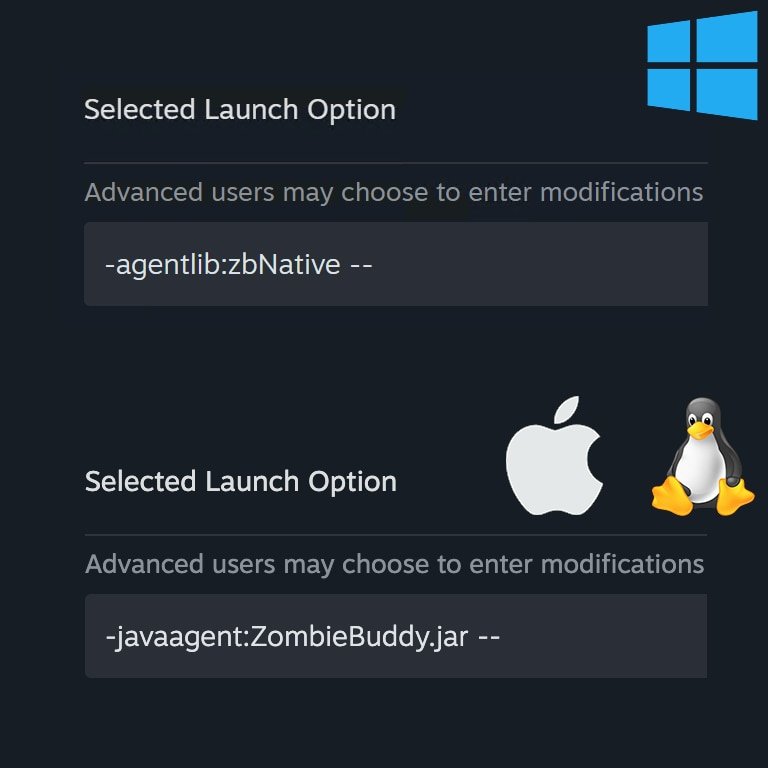
Open Project Zomboid's properties in Steam and add this to Launch Options:
-agentlib:zbNative --
Important: the -- separator at the end is required. These are two ordinary hyphens and must be kept exactly as they are.
If you use Alternate Launch, open ProjectZomboid64.bat and set the _JAVA_OPTIONS line like this:
SET _JAVA_OPTIONS=-agentlib:zbNative
Installing on macOS and Linux
On these systems ZombieBuddy is loaded as a Java agent.
Subscribe to the library on the Steam Workshop, then copy ZombieBuddy.jar from the mod's libs/ folder into the matching game directory.
macOS:
~/Library/Application Support/Steam/steamapps/common/ProjectZomboid/Project Zomboid.app/Contents/Java/
Linux:
~/.steam/steam/steamapps/common/ProjectZomboid/projectzomboid/
After copying, open Project Zomboid's properties in Steam and add this to the launch options:
-javaagent:ZombieBuddy.jar --
Important: the two hyphens -- at the end are required here too.
Once the initial setup is done, ZombieBuddy loads automatically for any installed mods that need it.
Approving Java components
By default, ZombieBuddy asks for permission before loading a new or changed JAR file.
The system confirmation window shows:
- the mod ID;
- the full file path;
- the last modified date;
- the SHA-256 checksum.
The file loads only after you allow it. You can apply your decision to the current session only, or save it for that specific mod and file checksum.
If the contents of a previously approved JAR file change, its checksum changes too, and ZombieBuddy will ask for confirmation again.
To bring up the confirmation window even for Java mods you already approved, hold Shift while the game is loading.
Where approvals are stored
Decisions to allow or block files are saved in mod_approvals.json.
Windows:
%USERPROFILE%\.zombie_buddy\mod_approvals.json
macOS and Linux:
~/.zombie_buddy/mod_approvals.json
Entries are tied to the mod ID and the SHA-256 checksum. true allows loading and false blocks it.
If you allowed or blocked a file by mistake, open the JSON, find the mod in the mods section, and change or delete its entry. Then save the file and restart the game.
Java mod loading policies
ZombieBuddy has three modes for handling new and changed JAR files. The mode is set with the policy=... parameter.
| Value | Behavior |
|---|---|
prompt |
Default: ask for confirmation before loading a new or changed file. |
deny-new |
Don't load files without a valid approval, and don't show confirmation prompts. |
allow-all |
Load all JAR files without confirmation. Not recommended. |
For example, to block unapproved files, use these launch options.
Windows:
-agentlib:zbNative=policy=deny-new --
macOS and Linux:
-javaagent:ZombieBuddy.jar=policy=deny-new --
Security
Java mods loaded through ZombieBuddy have unrestricted access to your system. Only install them from trusted sources, and review requests to load new files carefully.
The approval system helps you control which JAR files run. It does not limit what the code can do once you've allowed it to load.
Running in debug mode
To use Project Zomboid's debug mode, add -debug after the -- separator.
Windows:
-agentlib:zbNative -- -debug
macOS and Linux:
-javaagent:ZombieBuddy.jar -- -debug
Viewing loaded and blocked mods
To check the status of Java components, you can install Zed's Better ModList.
It shows the status of JAR files right in the mod list, so you can see which components were loaded and which were blocked.
Uninstalling ZombieBuddy
If you installed the library with ZombieBuddyInstaller.exe, run it again and choose Uninstall ZombieBuddy.
For a manual installation:
- Open Project Zomboid's properties in Steam and remove the ZombieBuddy launch options.
- If you edited
ProjectZomboid64.bat, remove the added-agentlib:zbNativefrom the_JAVA_OPTIONSline. - Delete
ZombieBuddy.jarand, if present,zbNative.dllfrom the folder you copied them to.
After that, unsubscribe from ZombieBuddy on the Steam Workshop.
Compatibility
Supported Project Zomboid versions:
- Build 41;
- Build 42.12–42.21.
ZombieBuddy works in multiplayer. The library itself can be added to and removed from existing saves.
After a game update, a version rollback or a file integrity check, you usually don't need to reinstall manually, as long as you use the standard launcher and your ZombieBuddy launch options in Steam are still there. If the library stops loading, repeat the setup.
Screenshots 1

Comments 0
No comments yet — be the first.
Log in or sign up to leave a comment.