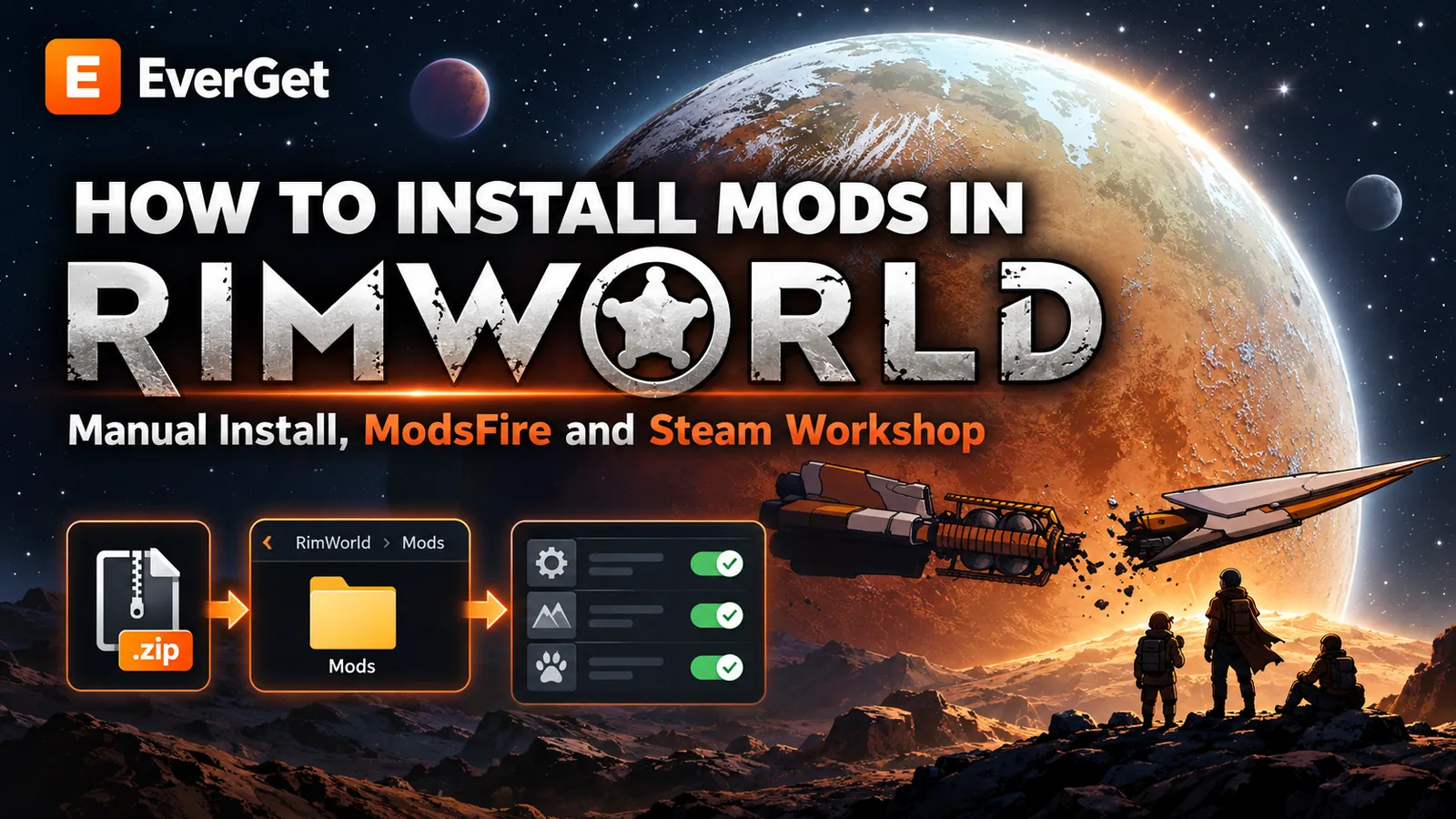

Learn how to install RimWorld mods manually using EverGet and ModsFire. Find the correct Mods folder, extract and enable modifications, configure load order, install Harmony and Vanilla Expanded Framework, and troubleshoot common errors. Includes Steam Workshop instructions, game version compatibility, and save backup tips.
Contents
- Method 1. Manually Installing RimWorld Mods from EverGet
- Where Is the RimWorld Mods Folder on Windows, Linux, and macOS?
- Method 2. Installing Mods Through Steam Workshop
- How to Set the Correct Mod Load Order in RimWorld
- How to Install Multiple RimWorld Mods
- Common RimWorld Mod Installation Problems
- How to Update Mods Downloaded from EverGet
- How to Back Up RimWorld Saves and Mod Settings
- Where to Download RimWorld Mods
Mods can completely transform RimWorld, introducing new factions, weapons, furniture, plants, animals, technologies, and entirely new gameplay systems. With the right modifications, a small colony can become a massive industrial complex, a medieval kingdom, or an advanced space settlement.
On EverGet.net, you can discover RimWorld modifications, explore their features, check requirements, and download archives for manual installation.
Our primary download method uses ModsFire, allowing you to install modifications directly without relying on Steam Workshop.
In this guide, we'll explain how to download and install mods from EverGet, configure the correct load order, use Steam Workshop, install required libraries, and fix common modding problems.
Method 1. Manually Installing RimWorld Mods from EverGet
Manual installation is the main method for mods downloaded from EverGet through ModsFire.
You do not need to subscribe to the modification on Steam Workshop. Simply download its archive, extract the files, and place the mod inside your RimWorld installation directory.
Step 1. Download a Mod from EverGet
- Visit EverGet.net.
- Find the RimWorld modification you want to install.
- Open the mod page and read its description.
- Check which RimWorld versions it supports.
- Follow the download link to ModsFire.
- Download the archive to your computer.
Mods are commonly distributed as .zip, .rar, or .7z archives.
Important: Always check version compatibility before downloading.
For example, a mod created for RimWorld 1.6 may not work correctly with RimWorld 1.7.
Some modifications also require official DLCs such as Biotech, Odyssey, Ideology, or other expansions.
Step 2. Extract the Downloaded Archive
After downloading the archive, extract it using 7-Zip, WinRAR, or another archive manager.
Inside, you should find a folder containing the modification's files.
A typical structure might include:
ModName/About/About.xmlModName/Defs/ModName/Textures/ModName/Assemblies/
Not every mod contains all these directories.
For example, modifications without custom C# code may not include an Assemblies folder.
The most important file is About.xml, located inside the About directory. It contains information that allows RimWorld to identify and load the modification.
Some mods also include version-specific folders such as 1.5, 1.6, or 1.7.
Keep these folders intact unless the developer explicitly instructs otherwise.
Step 3. Locate the RimWorld Mods Folder
Unlike Project Zomboid, RimWorld normally stores manually installed modifications inside the game's installation directory.
For a standard Steam installation on Windows, the folder is located at:
C:\Program Files (x86)\Steam\steamapps\common\RimWorld\Mods\
If Steam or RimWorld is installed on another drive, your path will be different.
The easiest way to find the correct directory:
- Open Steam.
- Go to your game library.
- Right-click RimWorld.
- Select Manage > Browse local files.
- Find the
Modsfolder inside the opened directory.
For GOG or other installations, open the directory where RimWorld is installed and locate its Mods folder.
Example:
D:\Games\RimWorld\Mods\
If the folder does not exist, make sure you are inside the main RimWorld installation directory before creating it.
Step 4. Copy the Mod into the Game Folder
Move the extracted modification folder into:
RimWorld/Mods/
For example, a mod named MyMod could use the following structure:
RimWorld/Mods/MyMod/About/About.xml
Defs/Textures/
This is an example. The exact files depend on the modification.
One common mistake is creating an extra nested folder.
Incorrect:
RimWorld/Mods/MyMod/MyMod/About/About.xml
Correct:
RimWorld/Mods/MyMod/About/About.xml
If the downloaded archive contains multiple separate mods, place each one directly inside the Mods directory in its own folder.
Do not place the compressed archive directly into the Mods folder. The files must be extracted first.
Step 5. Enable the Mod in RimWorld
After copying the files:
- Launch RimWorld.
- Open Mods from the main menu.
- Find the installed modification.
- Enable it or move it into the active mod list.
- Check for missing dependency warnings.
- Apply your changes.
RimWorld normally restarts after changes to the active mod list.
Once the game reloads, you can continue an existing colony or start a new one.
Your mod is now installed! If the modification supports your game version and all dependencies are available, its content should become accessible.
Where Is the RimWorld Mods Folder on Windows, Linux, and macOS?
The exact location depends on your operating system and game installation.
Windows, default Steam installation:
C:\Program Files (x86)\Steam\steamapps\common\RimWorld\Mods\
Linux, default Steam installation:
~/.steam/steam/steamapps/common/RimWorld/Mods/
macOS, default Steam installation:
~/Library/Application Support/Steam/steamapps/common/RimWorld/RimWorldMac.app/Mods/
On macOS, this folder may be located inside the game's application bundle.
GOG and other editions: The Mods directory is generally located inside the folder where RimWorld is installed.
If your installation uses a custom location, follow your actual game directory rather than the example paths.
Method 2. Installing Mods Through Steam Workshop
If you own RimWorld on Steam, you can also install modifications through the official Steam Workshop.
This method automatically handles downloads and updates.
Installation steps:
- Open Steam and navigate to your library.
- Select RimWorld.
- Open the Workshop section.
- Find the modification you want.
- Click Subscribe.
- Wait for Steam to finish downloading the files.
- Launch RimWorld and open the Mods menu.
- Enable the modification and apply the changes.
RimWorld will restart when necessary to load the updated mod configuration.
Where Are Steam Workshop Mods Stored?
Steam Workshop modifications are normally stored separately from manually installed mods.
On Windows, the default Workshop directory is:
C:\Program Files (x86)\Steam\steamapps\workshop\content\294100\
The number 294100 is RimWorld's Steam application ID.
Inside this folder, you will find directories named after Workshop item IDs.
Important: Avoid installing the same mod both manually through EverGet and through Steam Workshop.
Duplicate copies may cause conflicts or confusion about which version the game is loading.
We recommend choosing a single installation method for each modification.
How to Set the Correct Mod Load Order in RimWorld
Load order is one of the most important parts of maintaining a stable modded RimWorld installation.
Some modifications depend on shared libraries, while others modify content introduced by different mods.
An incorrect load order can result in missing content, warnings, crashes, or unexpected gameplay behavior.
A general load order structure is:
- Harmony: If installed, it should normally load first, even before Core.
- Core: RimWorld's main game module.
- Official DLCs: Your enabled expansions.
- Libraries and frameworks: HugsLib, Vanilla Expanded Framework, and other required dependencies in the order specified by their developers.
- Content and gameplay mods: Factions, races, weapons, furniture, overhauls, and additional mechanics.
- Compatibility patches: Usually placed after the mods they modify, unless the developer specifies otherwise.
This is general guidance rather than a universal load order for every mod collection.
Always follow the dependency requirements and load order instructions provided by mod developers.
What Are Harmony, HugsLib, and Vanilla Expanded Framework?
Some popular RimWorld modifications require additional libraries to function.
Harmony
Harmony is a library used by many mods to modify and extend RimWorld's code.
When installed, it should be placed at the very top of the load order.
HugsLib
HugsLib provides additional functionality used by certain modifications.
It is not required for every mod and should only be installed when needed.
Vanilla Expanded Framework
Vanilla Expanded Framework provides shared functionality for many modifications in the Vanilla Expanded series.
If your chosen mod requires this framework, you must install and enable it.
Different Vanilla Expanded modifications may have different requirements.
Tip: Always read the requirements and compatibility information on the mod's EverGet page before installing it.
How to Install Multiple RimWorld Mods
RimWorld can support dozens or even hundreds of modifications, but large collections require careful management.
The more mods you install, the more important compatibility and load order become.
For a more stable experience:
- Install the necessary libraries and frameworks first.
- Start RimWorld and check for errors.
- Add a few content mods.
- Test the game again.
- Continue expanding your collection gradually.
- Back up a working mod configuration.
For larger installations, specialized tools such as RimSort can help organize load order and identify dependencies.
However, automatic sorting does not guarantee complete compatibility.
Common RimWorld Mod Installation Problems
Mod Does Not Appear in the Mods Menu
If a manually installed mod is missing:
- Make sure the archive was extracted.
- Verify that the mod folder is inside
RimWorld/Mods. - Check for
About/About.xml. - Remove unnecessary nested directories.
- Confirm that the mod supports your game version.
- Restart RimWorld completely.
Incorrect folder structure is one of the most common reasons a manually installed modification fails to appear.
Missing Dependencies Error
A Missing Dependencies warning means that the modification requires another component.
For example, a mod may depend on Harmony, HugsLib, Vanilla Expanded Framework, or another content mod.
How to fix it:
- Identify the missing dependency.
- Download and install the required component.
- Enable it in RimWorld.
- Check the load order.
- Restart the game.
Remember that a library cannot replace a required official DLC.
Mod Is Not Compatible with My RimWorld Version
Some modifications are developed for older game versions.
A mod created for RimWorld 1.5 may not work with RimWorld 1.6 or 1.7.
Look for an updated release or use a compatible game version.
A mod appearing in the Mods menu does not automatically mean it is fully compatible.
Red Errors Appear After Installing Mods
Red messages in RimWorld's error log can indicate:
- Missing dependencies.
- Incorrect load order.
- Outdated modifications.
- Conflicts between mods.
- Bugs inside a specific modification.
Try disabling recently installed mods and enabling them again one at a time.
This can help identify the exact modification causing the problem.
RimWorld Takes Too Long to Load
Large mod collections can significantly increase startup times.
Mods containing extensive graphical assets, complex gameplay systems, or numerous code patches may require additional loading time.
If startup becomes unusually slow:
- Remove unnecessary modifications.
- Check for duplicate installations.
- Verify version compatibility.
- Disable conflicting mods.
- Inspect the game log for errors.
Mod Is Enabled but Its Content Is Missing
Some modifications require additional conditions before their features become available.
For example, new items may require research, certain events may appear only after some in-game time, and new factions or world features may require generating a new world.
If the mod loads successfully but you cannot find its content, check the developer's instructions.
How to Update Mods Downloaded from EverGet
Mods installed manually through EverGet and ModsFire do not update automatically through Steam Workshop.
To update a modification:
- Open the mod's page on EverGet.
- Download the latest available archive through ModsFire.
- Close RimWorld.
- Locate the existing mod folder inside
RimWorld/Mods. - Back up the old folder if necessary.
- Delete the old folder belonging to that specific modification.
- Extract the new version into its place.
- Launch RimWorld and check that everything works correctly.
Avoid simply copying new files over old ones, since outdated files removed by the developer may remain in the directory.
How to Back Up RimWorld Saves and Mod Settings
Creating backups is strongly recommended before installing major gameplay modifications.
Some mods introduce items, factions, structures, or mechanics that become part of your saved world.
Removing these mods later may cause missing content or prevent a save from loading correctly.
On Windows, RimWorld saves are normally stored in:
%USERPROFILE%\AppData\LocalLow\Ludeon Studios\RimWorld by Ludeon Studios\Saves\
To create a backup:
- Press
Win + R. - Paste the folder path.
- Press Enter.
- Copy your
.rwssave files to a safe location.
It is also useful to back up your active mod list:
%USERPROFILE%\AppData\LocalLow\Ludeon Studios\RimWorld by Ludeon Studios\Config\ModsConfig.xml
This file stores information about enabled mods and their load order.
Keeping both your save files and mod configuration makes restoring a working installation much easier.
Where to Download RimWorld Mods
On EverGet.net, you can discover RimWorld modifications, explore their features, review compatibility requirements, and download archives for manual installation.
Our mod pages are designed to help players understand what each modification adds before installing it.
Installing a RimWorld mod from EverGet takes five simple steps:
- Find your mod on EverGet.
- Download its archive through ModsFire.
- Extract it into
RimWorld/Mods. - Enable the modification in the Mods menu.
- Apply the changes and launch your colony.
You now know how to install, update, and manage RimWorld modifications.
Choose your favorite mods, experiment with new mechanics, and create your own unique colony experience!


Comments 0
No comments yet — be the first.
Log in or sign up to leave a comment.