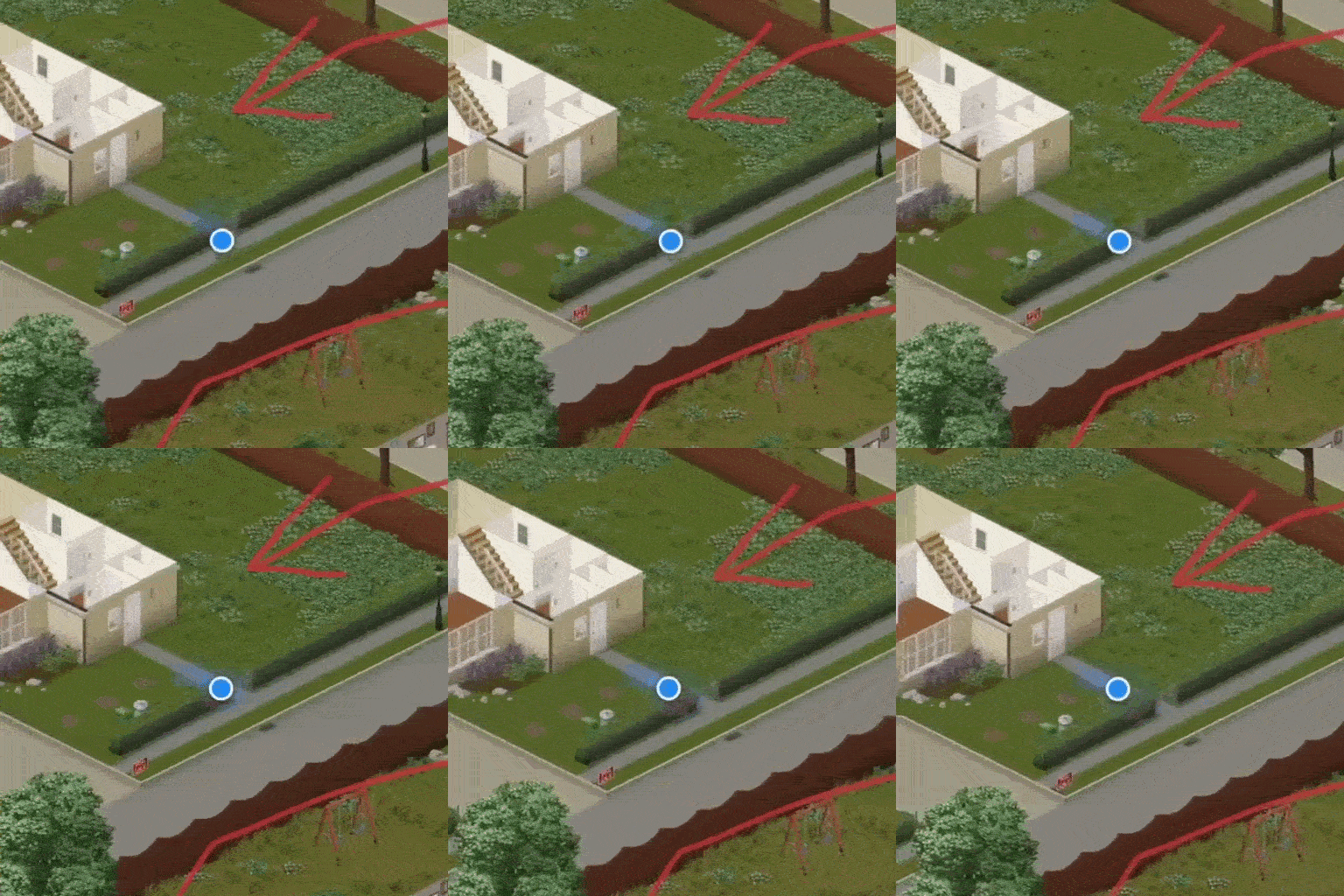

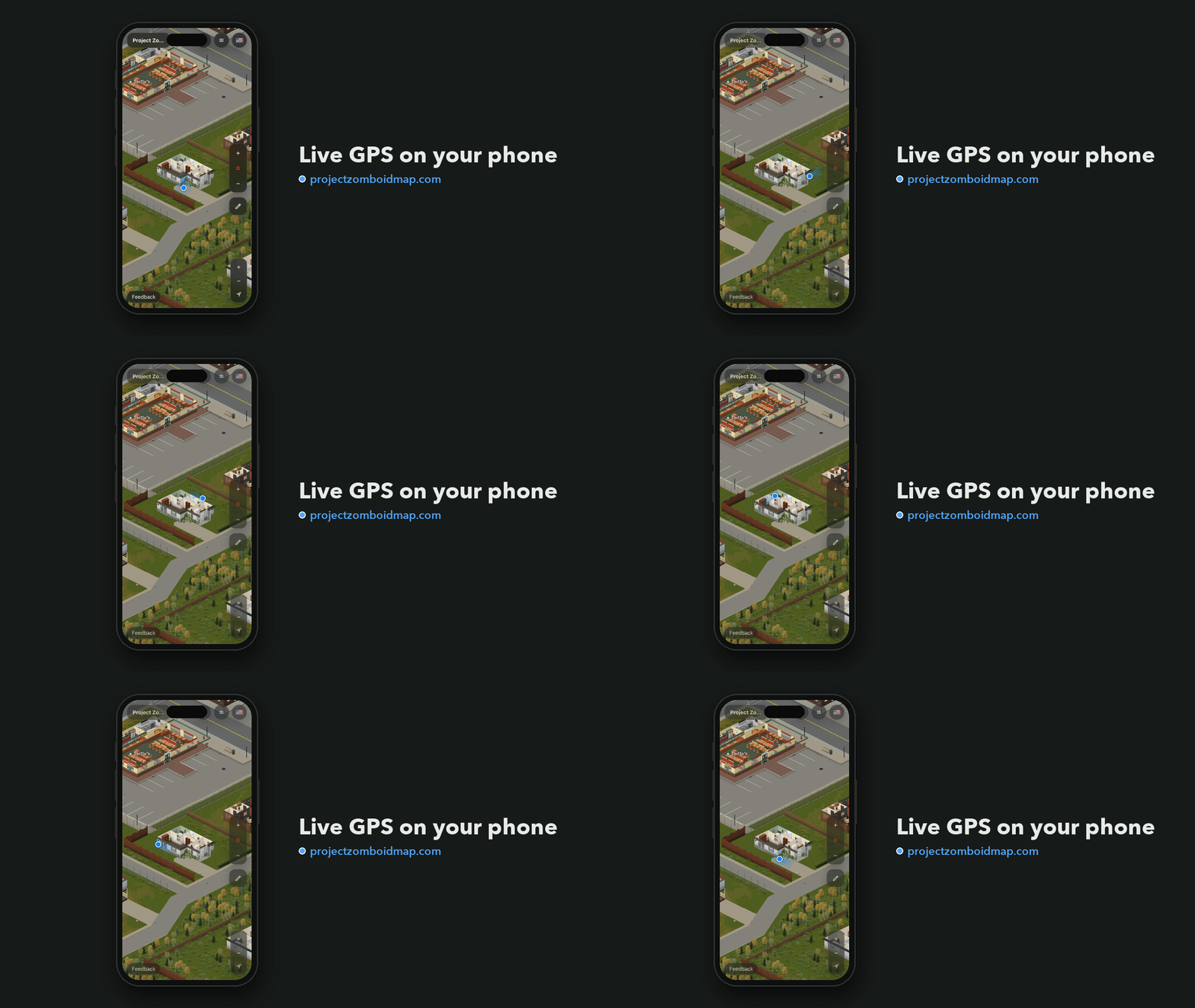
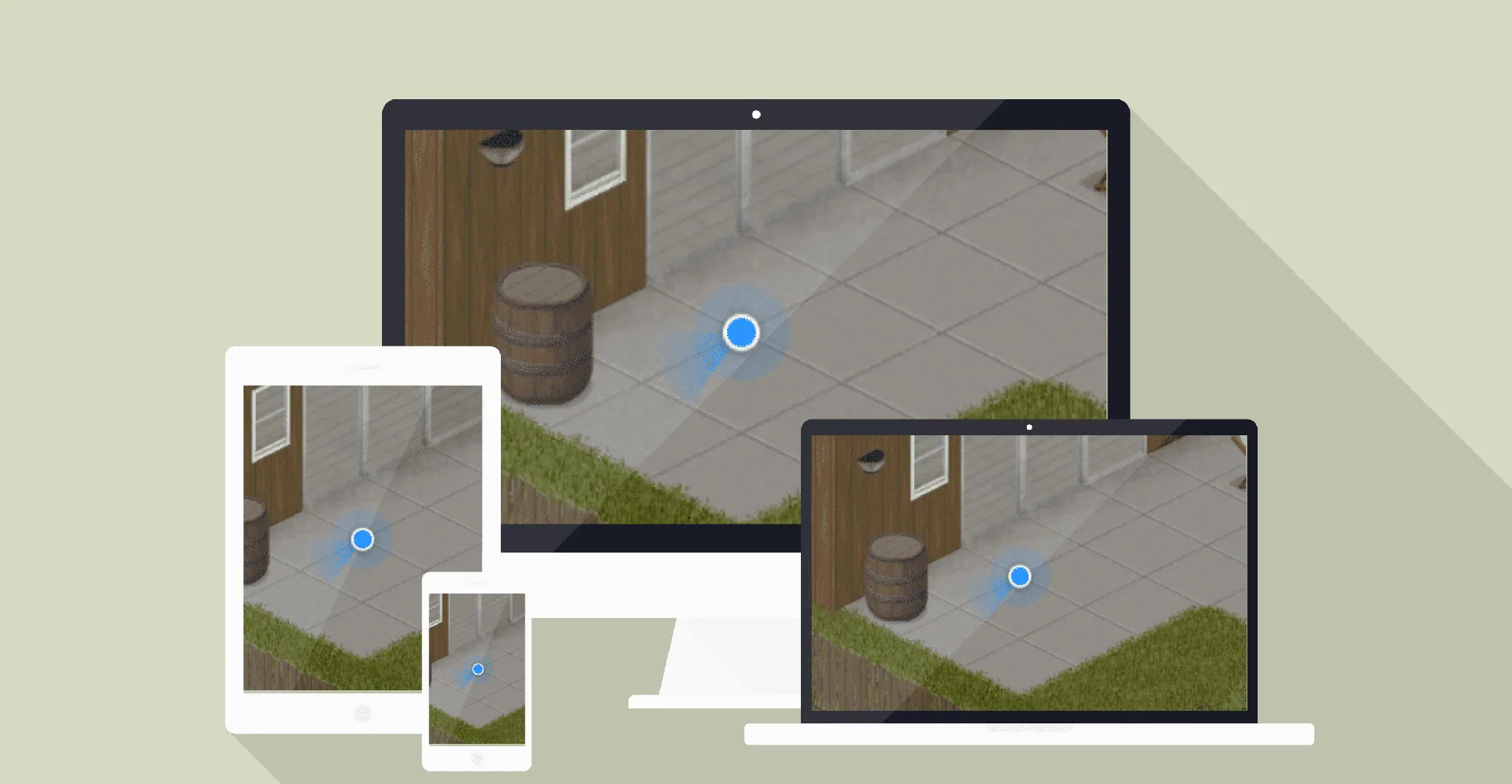
Follow your survivor live on the Project Zomboid Build 42 web map. View your position, direction and current floor on a second screen or phone, open the map with Home and optionally display other players in multiplayer.
Contents
PZM Companion connects your game to the free interactive Build 42 map at projectzomboidmap.com. Track your survivor on another screen while exploring, driving or navigating between towns.
Live position and direction
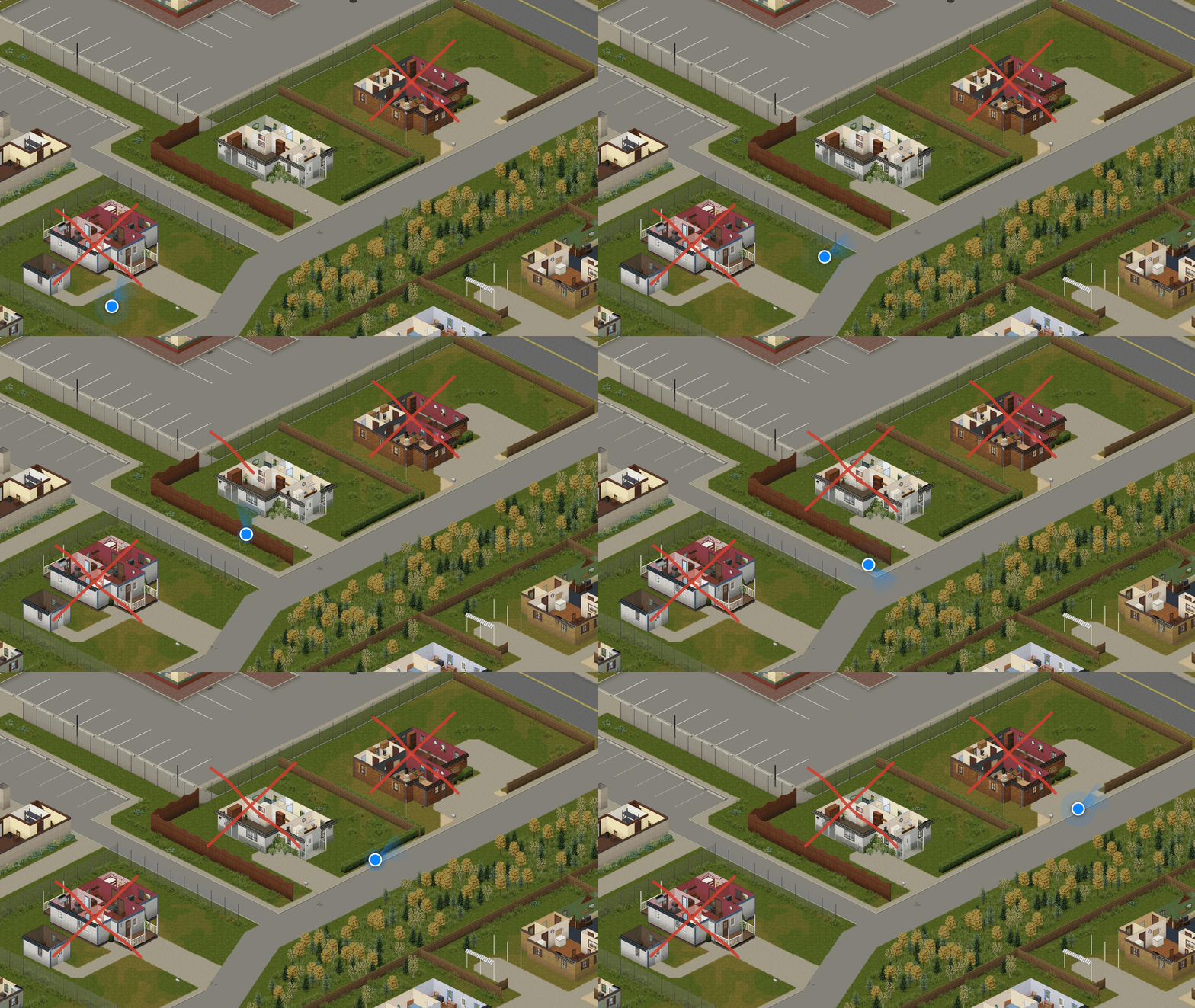
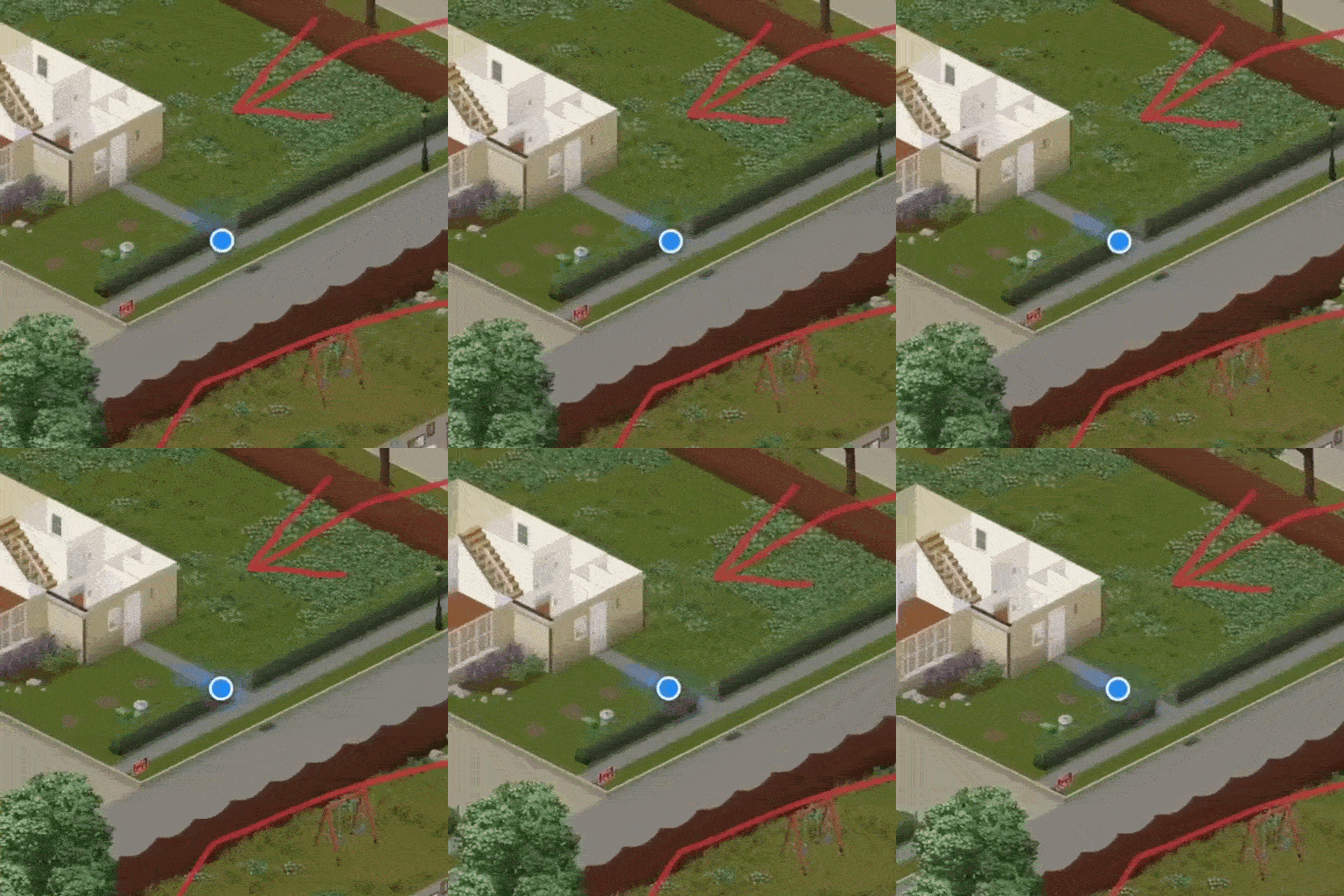
A blue marker follows your character with smooth movement and a directional beam. Automatic floor switching keeps the map aligned with your current level.
Press Home in the game to open the web map centered on your survivor.
Initial setup
- Enable the mod.
- Open the website in a supported desktop browser on your gaming PC.
- Select your Zomboid user-data folder.
- Start playing.
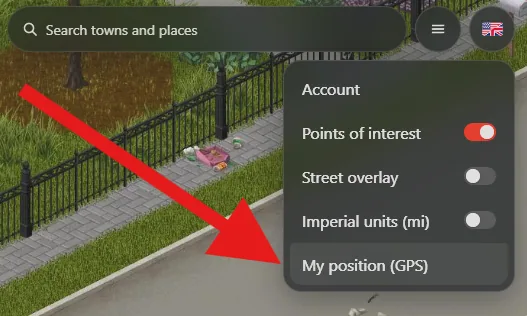
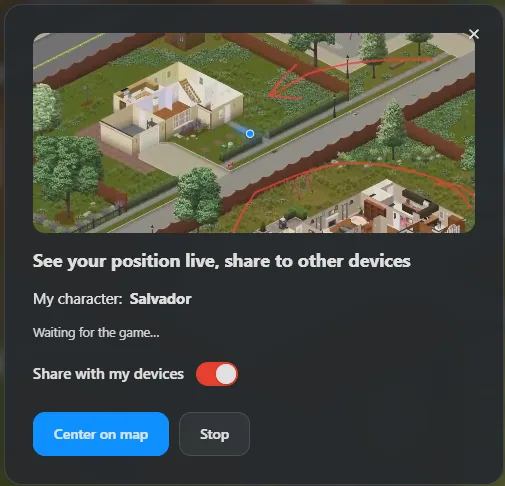
To follow your position from a phone or another device, sign in to your map account and press Connect.
Choose the folder containing your Zomboid user data, not the Steam installation folder:
- Windows:
C:\Users\YourName\Zomboid - Linux:
/home/you/Zomboid - Steam Deck:
/home/deck/Zomboid
Selecting the wrong folder can leave the website displaying “Waiting for the game…”.
Browser requirements
The browser reading the position file on your gaming PC must be a desktop Chromium-based browser, such as Chrome, Edge, Brave, Opera or Vivaldi.
Firefox, Safari and the Steam overlay browser cannot perform this folder-selection step. They can still be used to view a connected map on another device.
For Brave, enable brave://flags/#file-system-access-api, relaunch the browser and then select the folder.
Multiplayer
Enable Show other players on the web map under GPS Companion in the server’s sandbox settings to display friends alongside your marker. Connected devices can show those players too.
Linux and Steam Deck
Linux uses the same setup through a supported browser. Select the specific Zomboid folder rather than your entire home directory.
On Steam Deck, complete folder selection in Desktop Mode using Chrome, then follow the map from another device or the overlay. Flatpak installations may require locating a separate user-data directory; Ctrl+H reveals hidden folders in the file picker.
Screenshots 6

Comments 0
No comments yet — be the first.
Log in or sign up to leave a comment.