












Understand GTA 6’s inspection view, optical aiming and the launch-week first-person camera glitch. Includes PS5 and Xbox inputs, limitations and ways to restore the normal view.
Contents
GTA 6 First-Person Camera: Inspection, Optics and a Temporary View
GTA 6 lets you view the world in first person in specific situations, but there is no single universal camera switch behind every example. Inspecting objects, looking through optics and preserving the perspective through a glitch work differently.
Choose the method around your goal: reading a sign, lining up a shot or experimenting with movement from an unusual camera position. The regular features below are separated from the unstable method that may stop working after an update.
Available camera options
| Option | Useful for | Limitation |
|---|---|---|
| Stationary inspection | Examining objects and text | Not intended for normal walking |
| Optical aiming | Aiming a compatible weapon | Requires suitable optics |
| Preserving the view after closing the phone | Experimenting with first person | A glitch, not a stable setting |
Inspect objects up close
- Put away your weapon and stand still.
- Hold L2 on PS5 or LT on Xbox.
- Click the right stick to enter inspection.
- Look around while remaining stationary.
- With the standard PS5 controls, use R2 to zoom in.
Inspection is useful for signs, shop displays and small details. It is not designed for continuous movement in that perspective. If you use a different preset, check the current prompts.
Do not confuse inspection with Focus, the separate feature that highlights elements in the environment and uses the Focus meter.
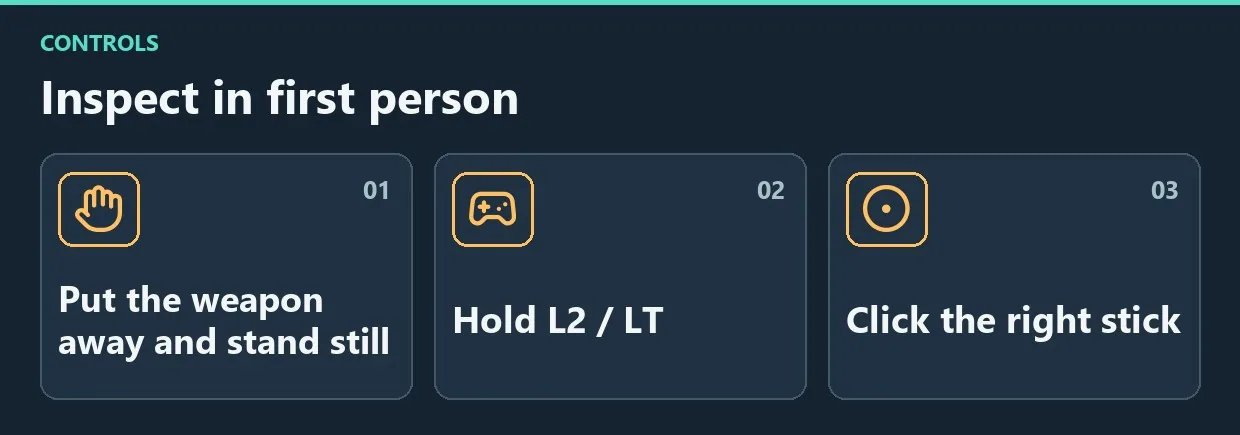
Diagram. Inspect in first person.
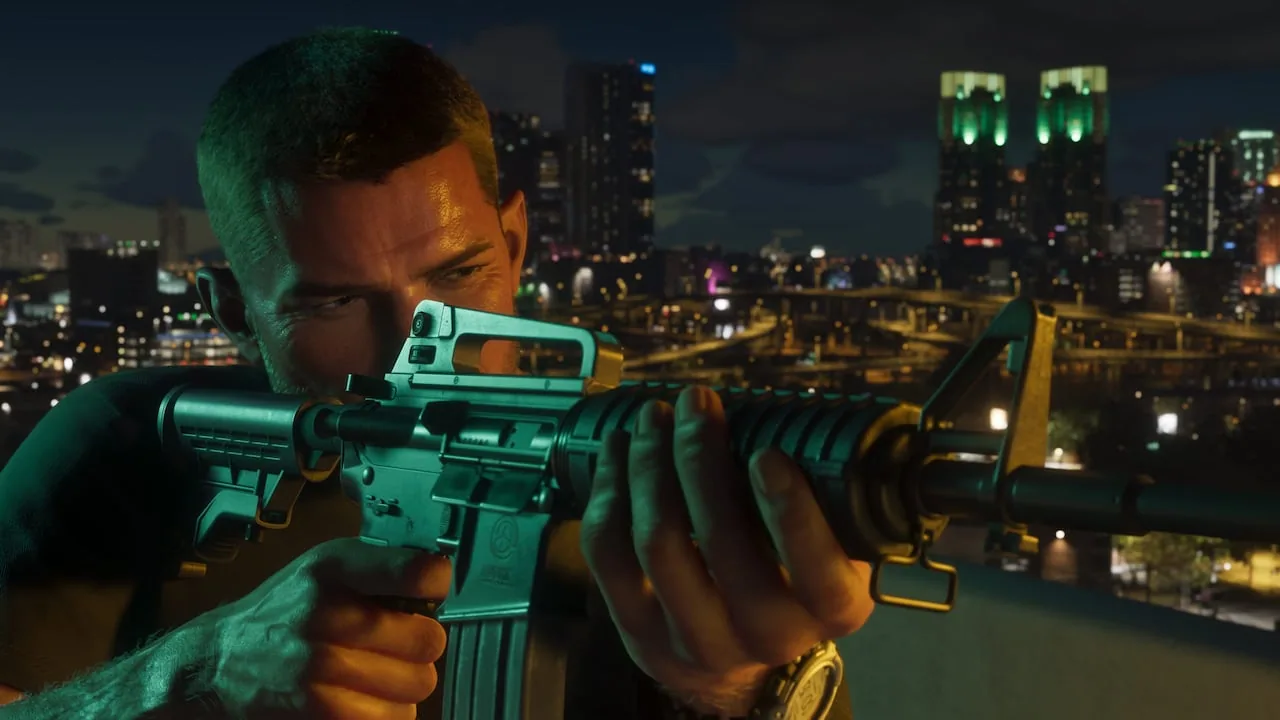
An optical sight fitted to Jason’s weapon.
Look through a weapon sight
Equip a weapon with suitable optics, hold aim and click the right stick. Clicking again or releasing aim returns to the usual perspective.
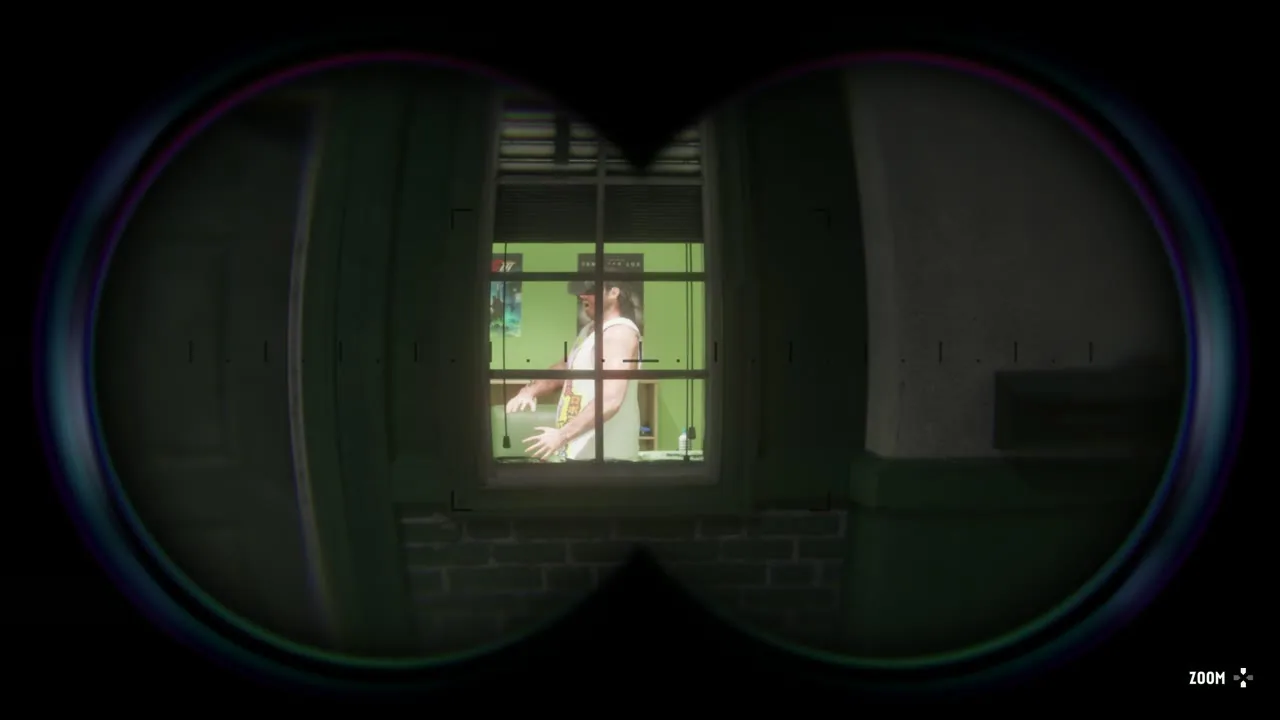
Looking through the optic puts the target inside the circular scope view.
Look for compatible upgrades under Attachments → Optics at Ammu-Nation. Not every weapon or attachment provides the same view, so check the selected model’s available upgrades first.
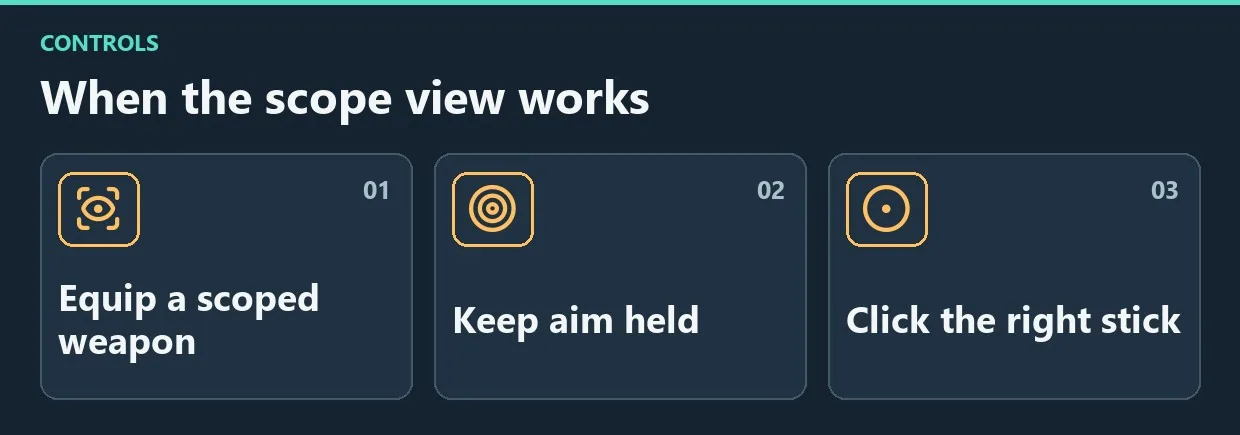
Diagram. When the scope view works.
Try preserving the camera through the phone
This method exploits a camera-transition glitch. Whether it works depends on the game version and input timing. Do not treat it as a fully supported setting for a permanent playthrough.
Make a separate save before experimenting, then:
- Open the controller settings.
- Assign Camera to the PS5 Touch Pad Button or the corresponding Xbox Back/View button.
- Enter a vehicle and open the phone.
- Close the phone with Circle on PS5 or B on Xbox.
- Rapidly press the assigned camera button as the phone closes.
- With successful timing, the phone disappears while the first-person perspective remains.
The timing window is short. An unsuccessful attempt does not mean you must buy an item, complete a secret mission or improve a character stat. The same technique may stop working after an update.
Why the camera changes back
A shop menu or another interaction that changes perspective can cancel the effect. This limitation follows from preserving a camera state rather than activating a supported permanent mode.
Restore the normal view
For inspection or optical aiming, repeat the input or release the relevant button. If the glitch is active, try a menu interaction that changes the camera or load a save. Account for any unsaved progress before reloading.
Restore the previous button assignment if the new shortcut interferes with opening the map. The map remains accessible through the pause menu during the experiment.
Frequently asked questions
Can you play the entire game in a standard first-person mode?
The regular features described here do not provide a universal mode for the entire game. The phone technique is separate and unstable.
Why can you not walk normally during inspection?
It is a stationary environmental inspection feature. Restricted movement is part of that camera behavior.
Why does the phone technique fail?
Possible causes include timing, different button assignments or changed behavior in an updated version. There is no guaranteed method for every version.
Choose the camera for the task
Use inspection for environmental details and compatible optics for aiming. Keep the phone technique to a separate experiment with a save, so an unstable camera does not disrupt your main playthrough.

Comments 0
No comments yet — be the first.
Log in or sign up to leave a comment.