










Learn how to turn on Auto-Drive in GTA 6 on PS5 and Xbox Series X|S. Follow the step-by-step autopilot controls, adjust cruising speed, enable cinematic camera mode and explore Leonida automatically while revealing new areas of the map.
Contents
- What Is Auto-Drive in GTA 6?
- How to Enable Auto-Drive on PS5
- How to Enable Auto-Drive on Xbox Series X|S
- How to Adjust Auto-Drive Speed
- How to Turn Off Auto-Drive
- Can Auto-Drive Reveal the GTA 6 Map?
- Auto-Drive vs Fast Travel in GTA 6
- Why Is Auto-Drive Not Working in GTA 6?
- GTA 6 Auto-Drive FAQ
- Final Thoughts
How to Enable Auto-Drive in GTA 6: Complete Autopilot and Cinematic Driving Guide
Exploring the massive open world of Grand Theft Auto VI can involve a lot of driving. From the busy streets of Vice City to the quieter highways, coastal roads and rural regions of Leonida, traveling between destinations is a major part of the experience.
But not every journey needs to involve manually steering your vehicle.
GTA 6 features Auto-Drive, a convenient mechanic that allows Jason or Lucia to drive automatically toward a selected waypoint.
Combined with Cinematic Camera Mode, this feature lets you watch the scenery while your character follows the road.
It is particularly useful for long-distance travel, discovering new locations and enjoying Leonida without constantly controlling the car.
In this guide, you will learn how to enable Auto-Drive in GTA 6 on PS5 and Xbox Series X|S, how to adjust your cruising speed, how to disable autopilot and how to use it for map exploration.
What Is Auto-Drive in GTA 6?
Auto-Drive is an automatic driving feature that allows your character to follow a navigation route without requiring constant manual steering.
The mechanic is similar in concept to the cinematic horse travel system in Red Dead Redemption 2.
Instead of following a route on horseback, Jason and Lucia can use vehicles to travel automatically across Leonida.
The basic process involves selecting a waypoint, entering Cinematic Camera Mode and activating Auto-Drive.
What Can Auto-Drive Do?
The system allows you to:
- Travel automatically toward a selected waypoint.
- Use cinematic camera angles during journeys.
- Adjust your vehicle's cruising speed.
- Explore distant parts of Leonida more comfortably.
- Reveal previously unexplored areas of the map.
- Enjoy long scenic drives without constantly steering.
However, Auto-Drive is not an instant fast travel feature.
Your character still follows the roads and physically covers the distance to the destination.
This means the journey takes in-game time.
How to Enable Auto-Drive on PS5
Before activating autopilot, you need to set a destination on the map.
Without an active waypoint, automatic navigation may not engage.
Step-by-Step PS5 Instructions
- Open the map. Choose the location you want to visit.
- Set a waypoint. Make sure your destination is marked and the navigation route is active.
- Enter a vehicle. Get behind the wheel and begin driving.
- Activate Cinematic Camera Mode. Hold Down on the D-pad, then press Options.
- Enable Auto-Drive. Once the cinematic camera is active, hold Circle (○).
- Adjust cruising speed. Use L2 to slow down or R2 to speed up.
Jason or Lucia will then follow the selected route automatically.
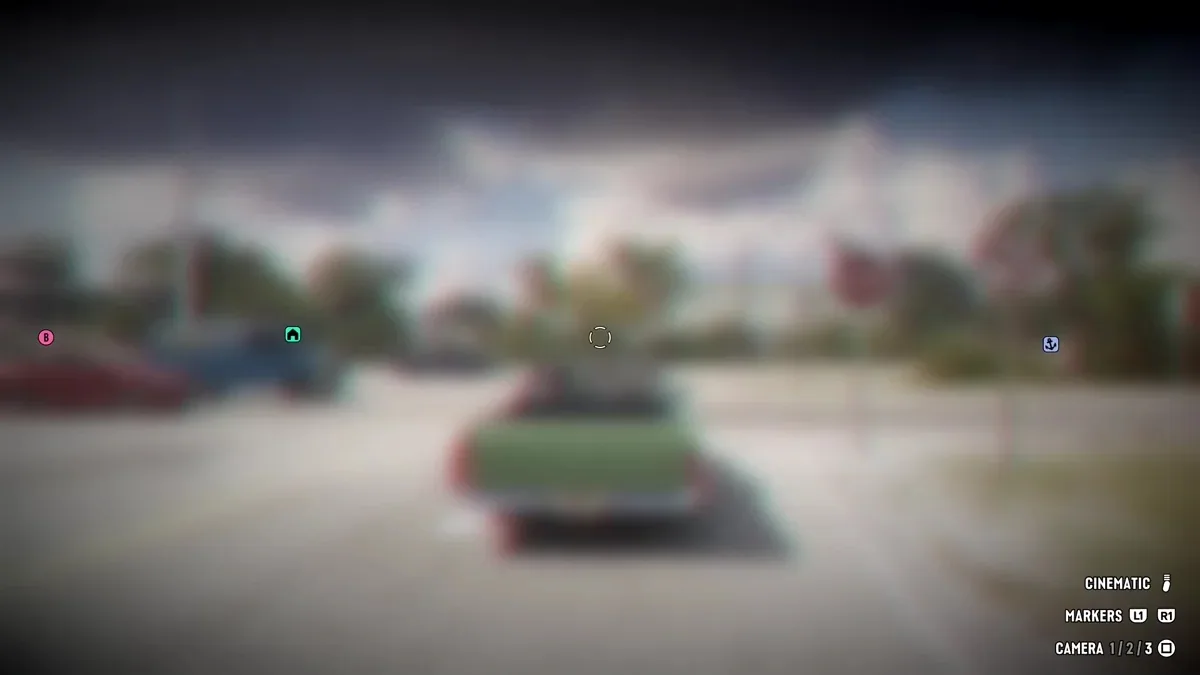
Camera menu: select Cinematic with Options on PS5.
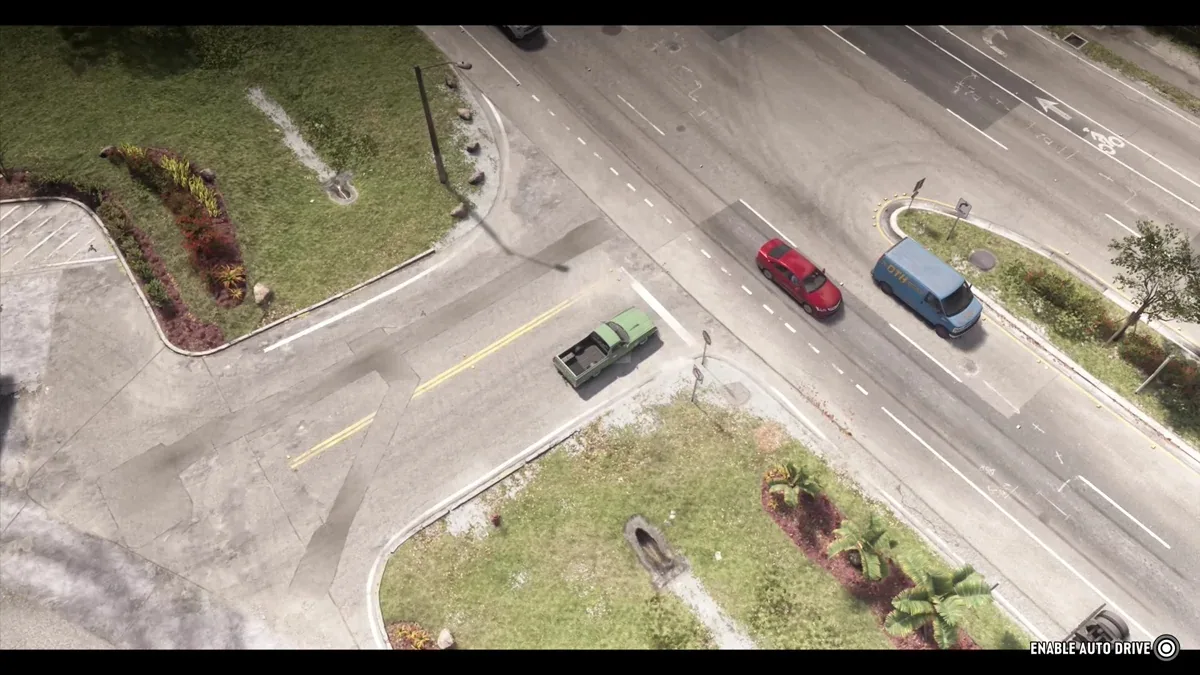
After switching camera mode, Enable Auto Drive appears at the lower right with the Circle button.
GTA 6 PS5 Auto-Drive Controls
| Action | PS5 controls |
|---|---|
| Select a destination | Map menu |
| Enter Cinematic Camera Mode | Hold D-pad Down + press Options |
| Enable Auto-Drive | Hold Circle |
| Slow down | L2 |
| Speed up | R2 |
| Exit Cinematic Mode | Hold D-pad Down |
The cinematic camera provides different perspectives while the vehicle travels along the route.
How to Enable Auto-Drive on Xbox Series X|S
The process is nearly identical on Xbox consoles, with a few different button names.
Step-by-Step Xbox Instructions
- Open the map and select your destination.
- Enter a car and get ready to drive.
- Hold Down on the D-pad.
- Press the Menu button to switch to Cinematic Camera Mode.
- Hold B to engage Auto-Drive.
- Use LT and RT to adjust your cruising speed.
Once activated, your character follows the navigation route automatically.
GTA 6 Xbox Auto-Drive Controls
| Action | Xbox controls |
|---|---|
| Select a destination | Map menu |
| Enter Cinematic Camera Mode | Hold D-pad Down + press Menu |
| Enable Auto-Drive | Hold B |
| Slow down | LT |
| Speed up | RT |
| Exit Cinematic Mode | Hold D-pad Down |
How to Adjust Auto-Drive Speed
One of the most useful features of Auto-Drive is the ability to change your vehicle's speed.
However, the system is designed primarily for comfortable navigation rather than high-speed racing.
Your character takes road conditions, other traffic and traffic signals into account.
As a result, automatic driving may be noticeably slower than manually speeding through the same route.
Speed Controls
- L2 on PS5 / LT on Xbox - reduce cruising speed.
- R2 on PS5 / RT on Xbox - increase cruising speed.
These inputs let you choose a more relaxed or faster travel pace.
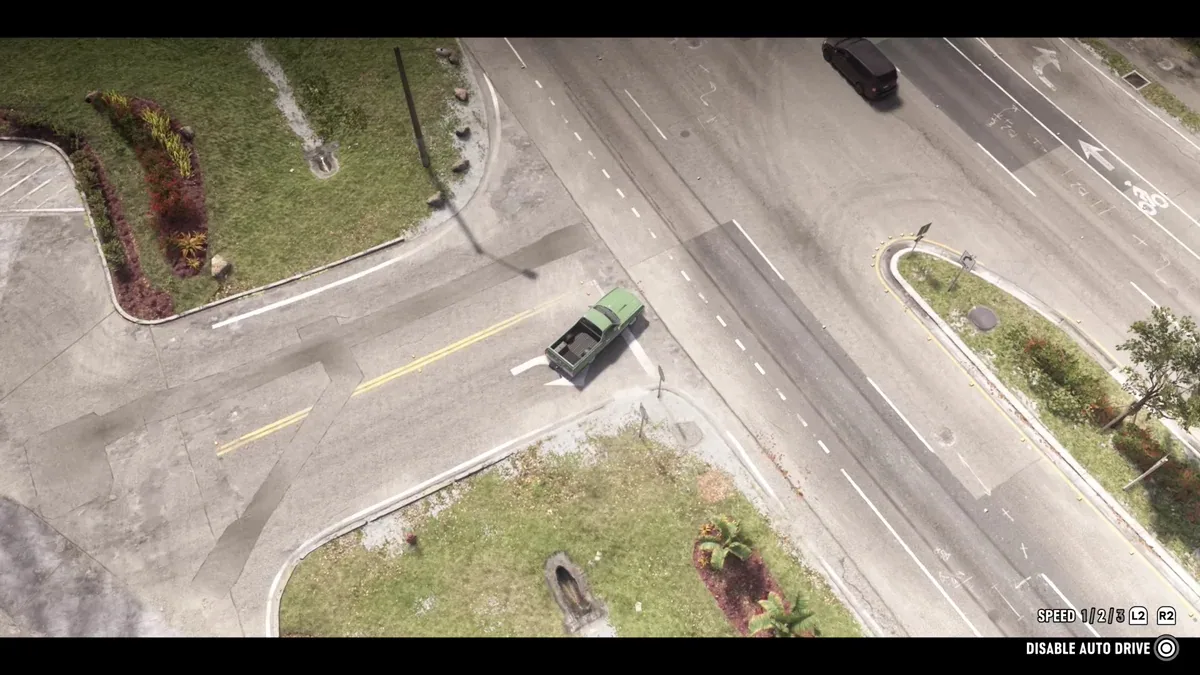
With Auto-Drive active, the interface shows three speed levels and the L2/R2 controls.
Does Auto-Drive Follow Traffic Laws?
During normal driving, the system generally follows road rules.
For example, your character may slow down for traffic or stop at red lights.
Even at higher cruising speeds, Auto-Drive is not designed to perform reckless high-speed maneuvers.
Tip: If arriving as quickly as possible is your priority, manual driving will often be faster.
Auto-Drive is better suited to scenic exploration and ordinary travel.
How to Turn Off Auto-Drive
You can return to manual driving whenever you want.
To leave Cinematic Camera Mode, hold Down on the D-pad.
After returning to the regular driving camera, you can control the vehicle yourself.
Remember that entering Cinematic Camera Mode does not automatically mean the vehicle is driving itself.
You must also activate Auto-Drive using Circle on PS5 or B on Xbox.
Can Auto-Drive Reveal the GTA 6 Map?
Yes. Auto-Drive can help reveal unexplored parts of Leonida while your character travels.
GTA 6's world map gradually becomes more detailed as you visit new areas.
When the character follows roads through previously unexplored territory, the journey contributes to your exploration progress.
This makes Auto-Drive particularly convenient for long-distance travel.
Best Way to Explore Leonida Automatically
- Open the world map.
- Find an area you have not visited.
- Place a waypoint in a distant region.
- Enter your vehicle.
- Enable Cinematic Camera Mode and Auto-Drive.
- Let your character follow the route.
- Check which sections of the map have been revealed.
- Set another destination to continue exploring.
You can repeat this process to explore major roads and travel connections between Vice City and the surrounding regions.
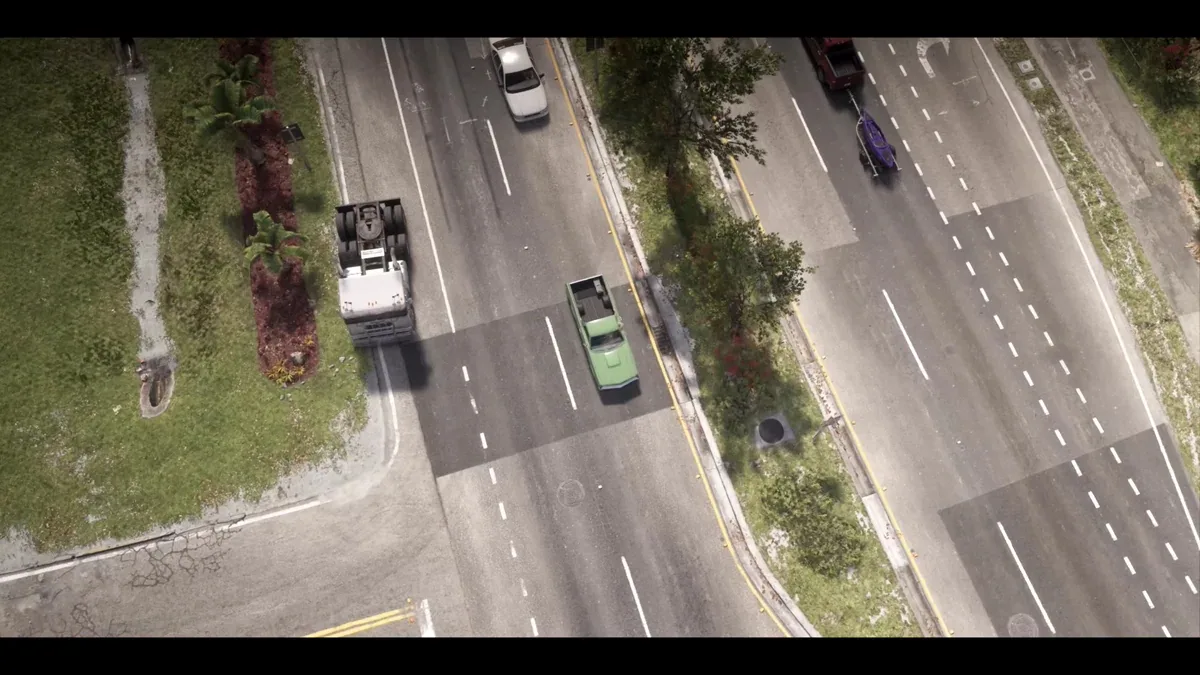
Cinematic camera during an automatic drive along the road.
Does Auto-Drive Uncover the Entire Map?
No.
The system reveals territory along the route your vehicle actually travels.
It does not instantly uncover every part of Leonida.
Locations away from the main roads may still require additional exploration.
Nevertheless, long automatic journeys can be an effective way to discover large portions of the road network.
Auto-Drive vs Fast Travel in GTA 6
Auto-Drive is not the only way to travel across Leonida.
Other transportation options, including RydeMe, can help shorten journeys.
However, they serve different purposes.
| Feature | Auto-Drive | Fast travel through a transport service |
|---|---|---|
| Requires a destination | Yes | Yes |
| Physically travels along the route | Yes | The journey may be skipped for a fee |
| Allows scenic viewing | Yes | During a normal ride |
| Reveals areas while traveling | Yes | Skipping the ride does not provide the same exploration |
| Best for | Comfortable exploration | Saving travel time |
When Should You Use Auto-Drive?
Auto-Drive is useful when:
- Traveling between distant towns.
- Exploring unfamiliar highways.
- Enjoying scenic routes.
- Discovering new sections of Leonida.
- Taking a break from manual driving.
When Is Manual Driving Better?
Manual control is generally preferable during:
- Police chases.
- Races.
- Robberies.
- Stunt challenges.
- Time-sensitive missions.
Auto-Drive is designed for ordinary travel, not situations requiring quick reactions or aggressive maneuvers.
Why Is Auto-Drive Not Working in GTA 6?
If the feature does not activate, check the following possible causes.
1. No Waypoint Has Been Set
The automatic driving system requires a destination.
Open the map and set a waypoint before attempting to activate it.
2. Cinematic Camera Mode Is Not Active
Auto-Drive works through Cinematic Camera Mode.
First, hold Down on the D-pad and press Options or Menu.
Then engage automatic driving using the appropriate button.
3. You Are Using the Wrong Button
On PlayStation 5, use Circle.
On Xbox Series X|S, use B.
The input requires holding the button rather than simply tapping it.
4. Auto-Drive Is Restricted in Settings
GTA 6 includes an Auto Drive option in its Gameplay settings.
Depending on the selected configuration, automatic driving may be restricted in certain circumstances.
If the feature does not engage, check Settings → Gameplay and review the Auto Drive option.
5. The Vehicle Cannot Follow the Route
Automatic navigation may not be available when the vehicle is in an unsuitable position or the situation requires direct manual control.
Try moving onto a suitable road, selecting the waypoint again and reactivating the feature.
GTA 6 Auto-Drive FAQ
Does GTA 6 Have Autopilot?
Yes. Auto-Drive allows Jason or Lucia to follow a selected waypoint without requiring constant manual steering.
How Do You Activate Auto-Drive on PS5?
Set a waypoint, hold Down on the D-pad and press Options to enter Cinematic Camera Mode. Then hold Circle to activate Auto-Drive.
How Do You Activate Auto-Drive on Xbox?
Choose a destination, hold Down on the D-pad and press Menu, then hold B to enable automatic driving.
Can You Change the Auto-Drive Speed?
Yes. Use L2 and R2 on PlayStation or LT and RT on Xbox.
Does Auto-Drive Follow Traffic Rules?
During ordinary travel, it generally responds to road conditions and traffic signals.
Can Auto-Drive Reveal Unexplored Areas?
Yes. Driving along unfamiliar routes reveals sections of Leonida's map as your character travels.
Is Auto-Drive the Same as Fast Travel?
No. Your car still travels along the roads in real time. Other transportation services may let you skip a journey for an additional fee.
How Do You Disable Auto-Drive?
Exit Cinematic Camera Mode by holding Down on the D-pad and return to manual vehicle control.
Final Thoughts
Auto-Drive in GTA 6 is one of the most convenient features for exploring Rockstar Games' expansive open world.
It allows Jason or Lucia to handle the driving while you enjoy cinematic views of Vice City, the countryside and the many roads connecting Leonida's regions.
To activate it, simply select a destination, switch to Cinematic Camera Mode and use the appropriate controller input.
You can also adjust cruising speed and reveal unexplored areas while traveling.
Although Auto-Drive is not a replacement for instant fast travel or manual driving during dangerous missions, it is an excellent option for relaxed journeys and scenic exploration.
Use it when you want to discover more of Leonida without spending the entire trip controlling the steering wheel.


Comments 1
Спасибо за работу
Log in or sign up to leave a comment.