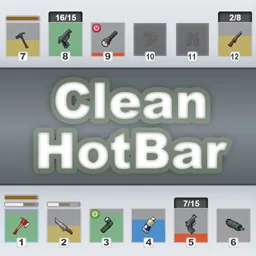

Checking a weapon’s condition or a radio’s battery should not require another trip through the inventory. Clean Hot Bar brings useful equipment details to Project Zomboid’s quick-access slots and hand-equipped item displays.
Contents
Clean Hot Bar — Keep Your Equipment Status in View
Checking a weapon’s condition or a radio’s battery should not require another trip through the inventory. Clean Hot Bar brings useful equipment details to Project Zomboid’s quick-access slots and hand-equipped item displays.
You can decide how much information appears, resize the interface, adjust its transparency, or have the hotbar disappear when it is not needed.
Know what you are carrying
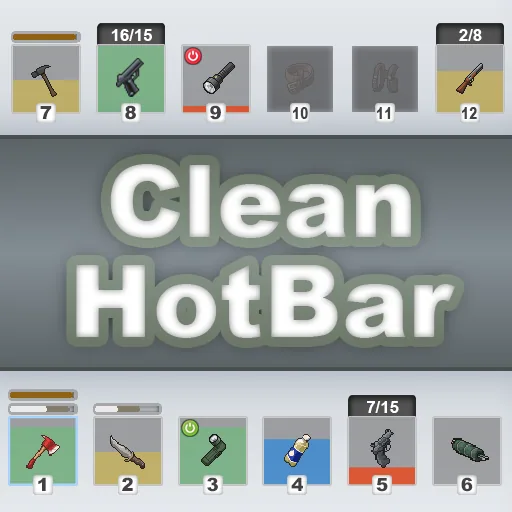
Depending on the item, Clean Hot Bar can display:
- overall durability, weapon head condition, and sharpness;
- loaded and spare ammunition, chamber state, and jams;
- whether a flashlight or another activatable item is switched on;
- remaining liquid or consumable contents;
- battery charge for radios and walkie-talkies.
These indicators also work with items held in the primary hand, secondary hand, or both hands, even when they occupy no attachment slot. Hotbar and hand-equipped feedback can be configured independently.
Firearm ammunition has two display styles: 15+1/15 separates the chambered round, while 16/15 combines it with the loaded ammunition count.
Make equipment easier to organise
Dragging an item highlights compatible visible attachment slots and possible replacements. A circular-arrow button on the left lets you hide unused slots, keeping large equipment layouts easier to navigate.
Built-in reordering gives you control over slot placement. Unlock the layout to swap two slots or insert one between others, then lock it again to prevent accidental changes. Your arrangement is saved automatically.
This also works with additional attachment locations, including those provided by Authentic Z backpack upgrades.
Choose how much interface you need
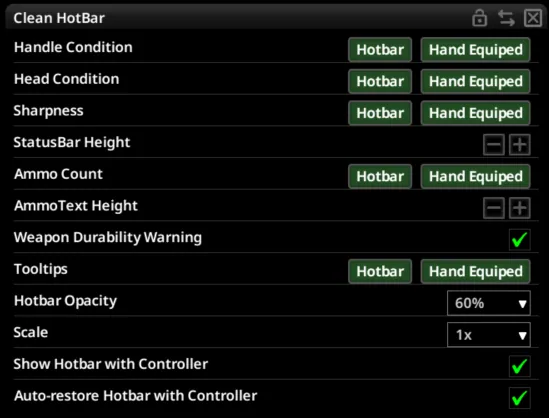
Hover over the hotbar and select the three-line button to open its settings.
Available adjustments include:
- hotbar scaling from 0.6× to 2.0×;
- opacity from 20% to 100%;
- status-bar height and ammunition text size;
- separate tooltips for hotbar and hand-equipped items;
- weapon-condition warnings;
- optional auto-hide with an adjustable delay.
Auto-hide is disabled initially. When enabled, the bar fades away and returns as the pointer approaches its usual position or the bottom edge of the screen. It remains accessible while dragging items or changing CHB settings.
Preferences are client-side, so each player can configure their own interface.
Feedback without opening another window
A brief shake and flash signal durability loss, while liquid indicators drain smoothly. Optional warnings help draw attention to an equipped weapon wearing down.
Controller users can access CHB settings through the Back/View radial menu. By default, the hotbar remains available during controller play, temporarily hiding while inventory or loot panels are open and while driving.
Compatibility and setup
Clean Hot Bar supports Project Zomboid Build 42.12.3–42.21.0, including single-player, hosted multiplayer, and dedicated servers. No framework is required.
Compatibility includes CleanUI, NeatUI Framework, NeatUI Equipment, Better Flashlights, and Sling On Back.
If Minimal Hotbar is installed, it handles auto-hide instead of CHB. If Reorder The Hotbar is detected, slot rearrangement is delegated to that mod.
When using CHB’s built-in reordering alongside QoL Compendium, disable the latter’s Change quick access bar order option.
Place Clean Hot Bar near the bottom of the load order. Mods that extensively alter hotbar rendering, attachment slots, dragging, or equipping may conflict with it. Fully restart a multiplayer server after changing its mod configuration.
Screenshots 5




Comments 0
No comments yet — be the first.
Log in or sign up to leave a comment.