 Xemordio
Project Zomboid Build 42.12.3-42.21.0 — SP / MP CleanUI is a streamlined inventory and loot interface overhaul for Project Zomboid Build 42. It keeps the familiar vanilla inventory flow while making panels cleaner, more compact, easier to read, and highly configurable. Requirements NeatUI…
Contents
CleanUI
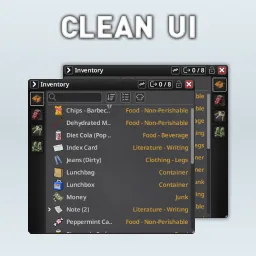
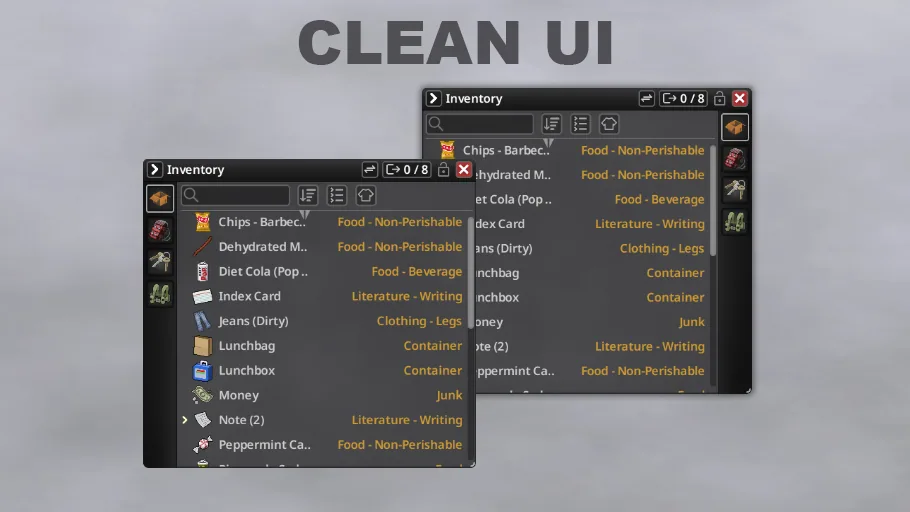
A refreshed inventory and loot interface for Project Zomboid Build 42. The familiar vanilla way of handling your inventory stays the same, but the panels become cleaner, more compact and easier to read, and almost everything can be tuned to your liking.
| Builds | 42.12.3 – 42.21.0 |
| Modes | singleplayer and multiplayer |
| Languages | all 28 languages currently in Project Zomboid |

Requirements
- NeatUI Framework is required and must load before CleanUI.
- NeatUI Framework v1.0.6 or newer is recommended.
- Build 42 only.
Server setup:
Mods=NeatUI_Framework;CleanUI
WorkshopItems=3508537032;3437629766
Fully restart the server after changing its mod list.
What it does
Look - Cleaner, more compact inventory and loot panels. - Container buttons are configurable: position, size, opacity and layout. - A collapsible utility panel. - Sorting, configurable text and automatic shortening of long names. - An optional Weight column and configurable column headers. - Hotbar items are grouped under Equipped Items.
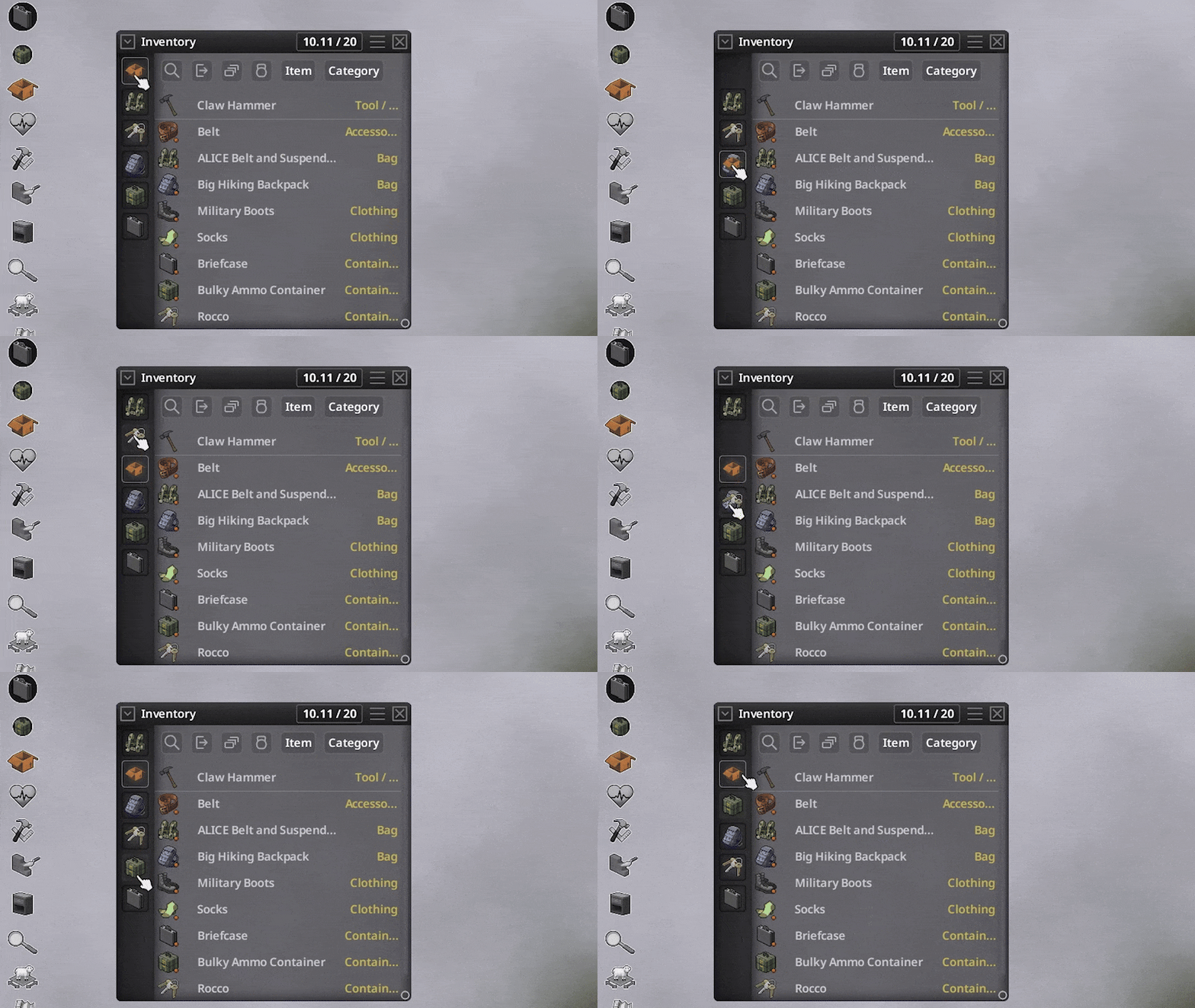
Handling - Reorder containers by dragging them, in both the inventory and the loot panel. The order is saved between sessions, and in multiplayer each player keeps their own. - Transfer All and Take All show capacity right on the button. - Search by item name, by category or by both. - Quick transfers through a single menu or separate buttons.
Flexibility - Switch between CleanUI and the vanilla inventory in one click. - All settings are client-side: layout, colours, scaling, transfers and more.
Search and transfers
Right-click the search box to choose what to search by: name, category or both. Matches are moved to the top of the list.
You can move items through one compact menu or with separate quick buttons for item name, category and Move To Floor.
Supported actions work on the selected container as well as on nearby containers.
Container order
To change the order, just drag a container's icon.
CleanUI remembers your order, so it stays put after returning to the main menu or restarting the game.
In multiplayer, the order is stored separately for each player, so your layout isn't forced on anyone else.
The Floor container always stays last in the loot list.
What's where

| # | Element | What it does |
|---|---|---|
| 1 | Transfer | quick transfer actions or the transfer menu |
| 2 | Transfer All / Take All | moves every item and shows capacity |
| 3 | Lock | stops the inventory window from being dragged or resized |
| 4 | Search | filters by the selected search mode |
| 5 | Divider | adjusts column widths |
| 6 | Sort | opens sorting options |
| 7 | Collapse / Expand | folds and unfolds grouped stacks |
| 8 | Equipped Items | shows or hides the equipped items section |
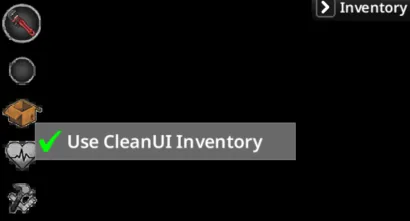
Going back to the vanilla inventory: right-click the open box icon in the left button bar and untick Use CleanUI Inventory.

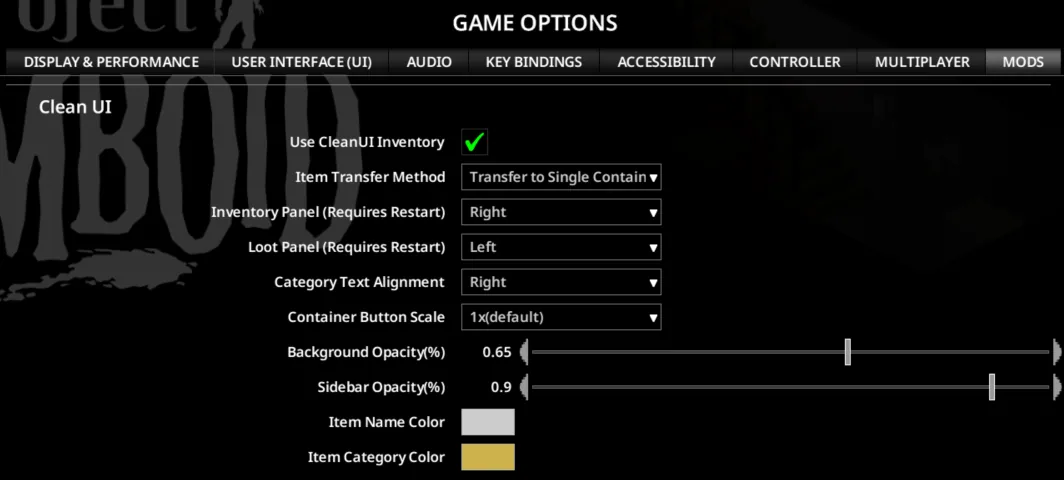
CleanUI settings: ESC > Options > Mods > CleanUI
Settings are client-side, so every player sets up the interface their own way.
Build 42.21 support
CleanUI is adapted to the inventory and UI changes in Build 42.21 while still working on the earlier supported B42 builds.
That covers the new container behaviour, journal-writing changes, locked-container handling, container display types and the updated vanilla localization.
Compatibility
Most gameplay, item, map, vehicle and content mods should work fine.
Conflicts are more likely with mods that replace inventory or loot UI files, context menus, container behaviour or similar interface systems.
Tested and compatible with: - Item Rarity UI - Better Containers - Proximity Inventory B42.20+
⚠️ Better Containers and Proximity Inventory are not compatible with each other.
Overlaps in features with Reorder Containers, Search Container, Smart Stack and Auto Drop n' Loot.
May conflict or cause display issues: other inventory overhauls, Bigger Inventory Container Icon and JB Max Capacity Override.
Compatibility can depend on mod versions, load order, game build and server configuration.
Controller
CleanUI keeps vanilla controller behaviour wherever it can, but controller support hasn't been fully tested and some limitations may remain.
Controller players may want to try Clean UI Menu Support.
Performance
Very large containers, or ones full of modded items, demand more from the interface, especially when there are many different rows or expanded stacks.
If a particular container drags your FPS down:
- turn off Optimize Large Stacks and the optional Weight column;
- keep very large stacks collapsed and clear any active search or filters;
- enable UI Offscreen Rendering in Options > User Interface;
- cap UI Rendering FPS at 60 (try 30 too, for comparison);
- compare the same container with Use CleanUI Inventory on and off.
Performance depends on container size, item variety, expanded stacks, screen resolution, UI settings and other inventory mods.
If something isn't working
After a game or Workshop update, first make sure Steam has downloaded the latest versions of both NeatUI Framework and CleanUI.
If the problem persists:
- Fully restart Project Zomboid.
- Verify the game files: Steam Library > Project Zomboid > Properties > Installed Files > Verify integrity of game files.
- Try a new save or a backup with only NeatUI Framework + CleanUI (NeatUI first).
- If that works, add your other mods back in small groups until the conflict reappears.
Verifying files may remove any manual changes you made to the game's own files.
Questions and bugs
For help, compatibility questions and bug reports, head to Questions and Bug Reports.
Where relevant, please include:
- Project Zomboid and CleanUI versions;
- the mode: singleplayer, host or dedicated server;
- keyboard and mouse or controller;
- your full mod list and load order;
- exact steps to reproduce;
- which container is affected and roughly how many items or rows it holds;
- which searches, filters, sorting, stacks and CleanUI options were active;
- a screenshot or video;
- console.txt, coop-console.txt, the server log or logs.zip.
For performance reports, a before/after FPS comparison on the same container is especially helpful.
Credits
- Original mod by Rocco: Workshop items
- Maintenance and compatibility updates by Afyrmo: Workshop items
Screenshots 4
Comments 0
No comments yet — be the first.
Log in or sign up to leave a comment.